SMS
The number must support SMS functionality to receive incoming messages or to be used as a Sender ID for outgoing messages. You can check if your number is SMS-enabled in the Purchased section.
Inbound SMS
Portal
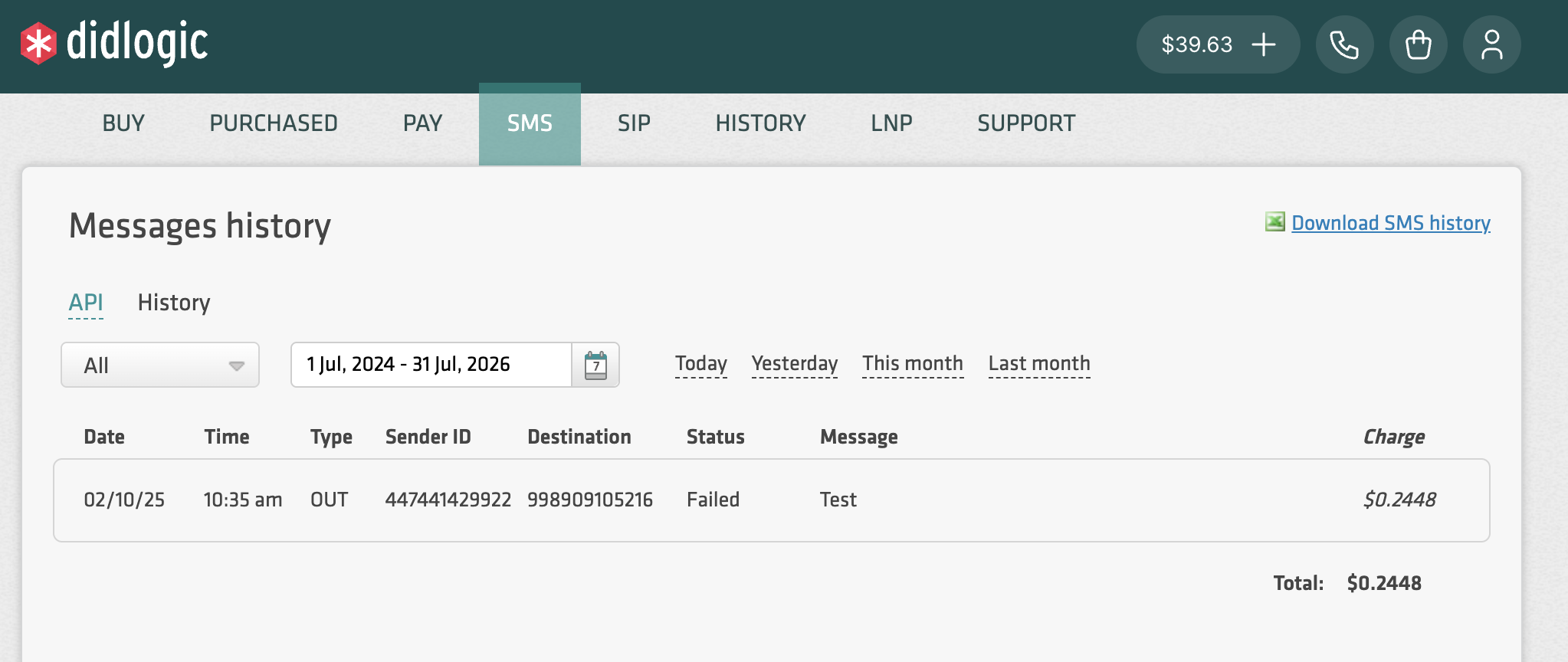
All received SMS messages are displayed in the SMS → History tab.
Webphone and Mobile App
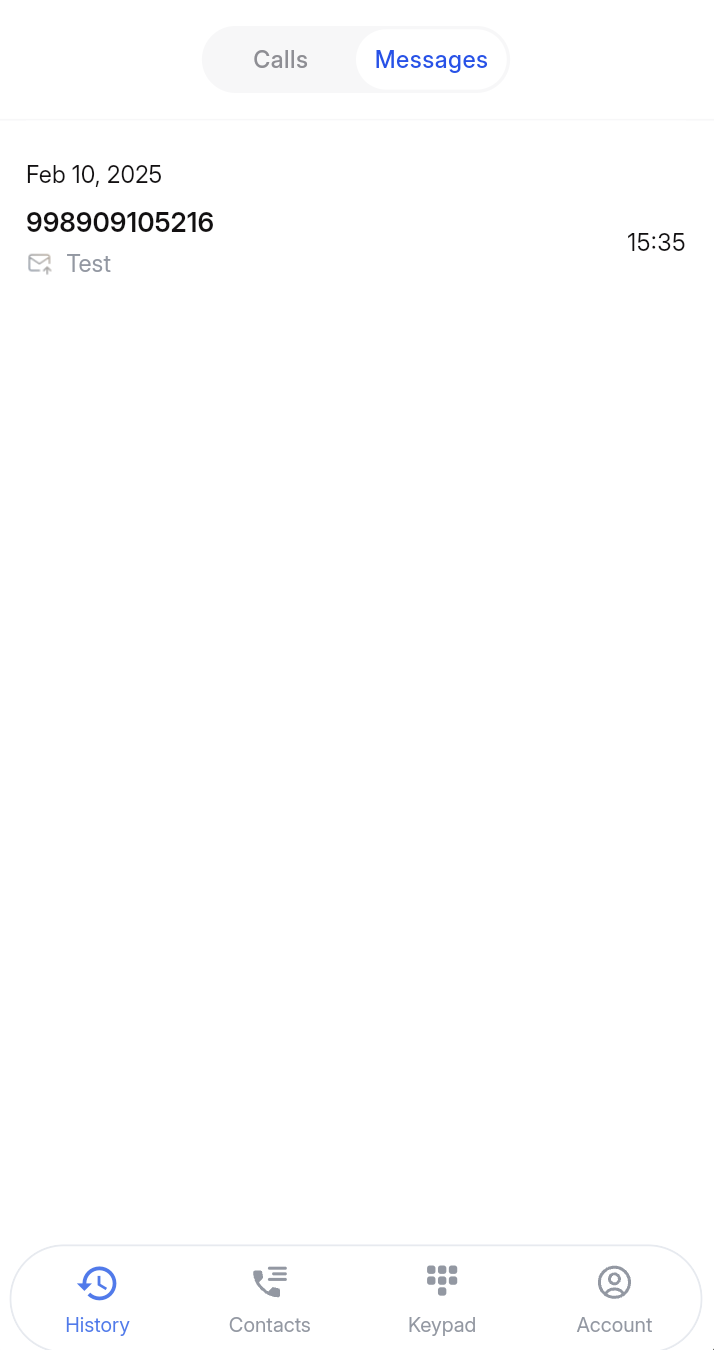
You can view incoming messages in the app by navigating to History → Messages.
Webhooks
You can configure incoming messages to automatically relay to your endpoint via webhooks. Set up your webhook destination in the API & Webhooks section. Learn more.
Outbound SMS
Sending SMS messages requires a valid Sender ID — either an SMS-enabled phone number or an Alphanumeric Sender ID (e.g., your company name). Custom Alphanumeric Sender IDs are configured upon request.
Certain destination countries enforce specific compliance requirements and messaging restrictions. Contact your account manager to learn more.
Portal
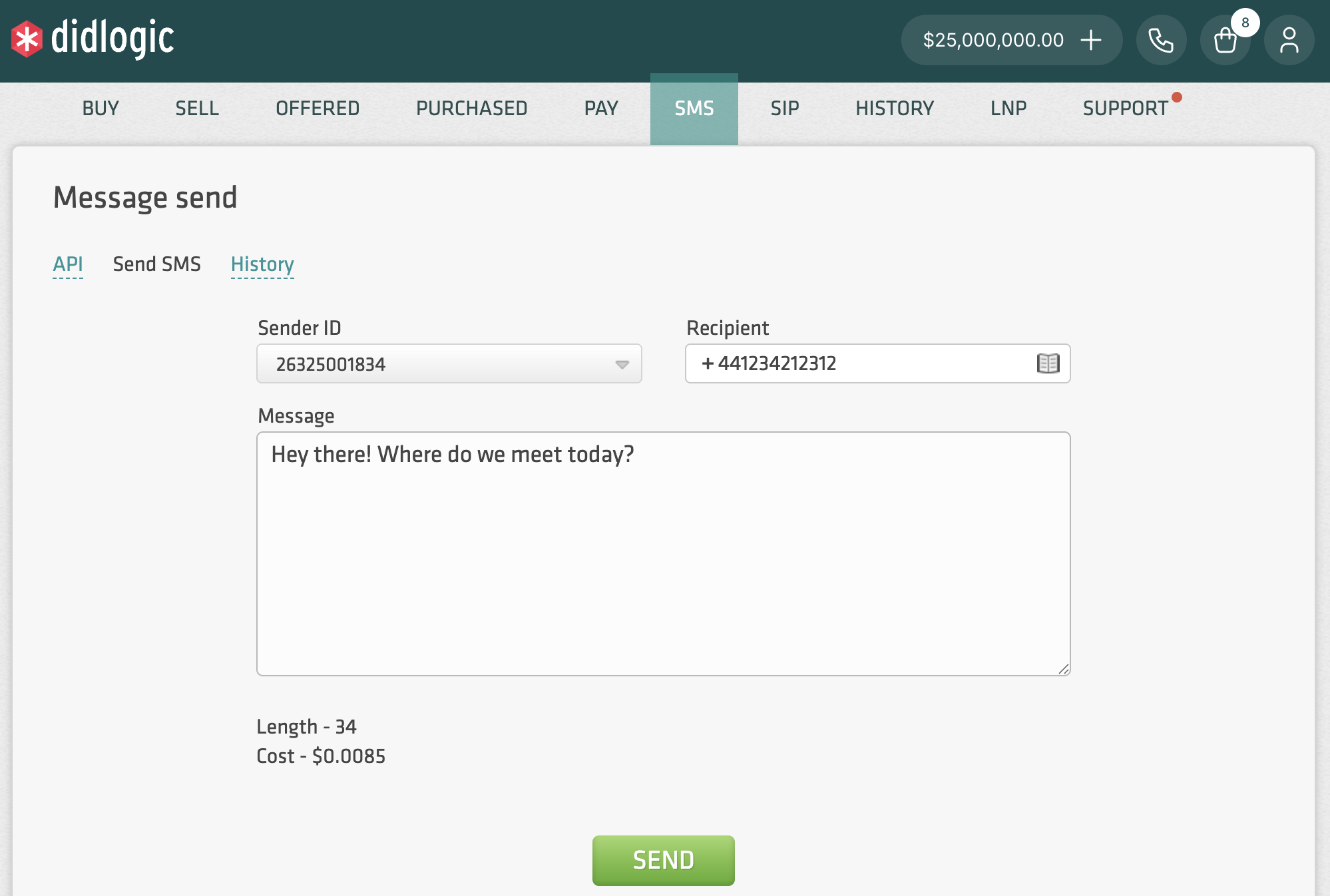
Send messages directly from the Customer Portal:
- Navigate to the SMS section.
- Select a Sender ID from your available numbers or verified custom IDs.
- Enter the recipient's phone number and type your message.
The total cost per message will be displayed before sending.
You must have at least one SMS-enabled number to see the Send SMS option.
Webphone and mobile app
You can initiate a message from the mobile app or webphone in three ways:
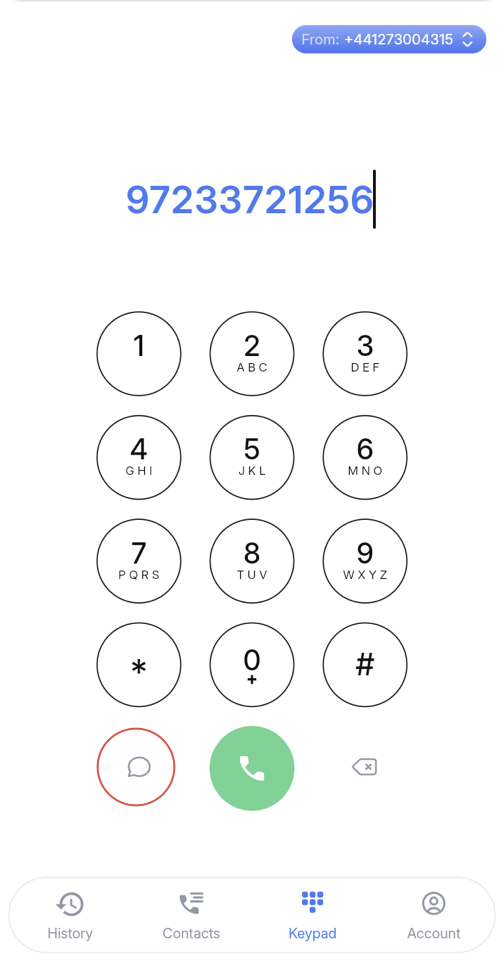
- Keypad: Enter the recipient's number and click the Message icon to start a thread.
- History: Open an existing conversation thread under History → Messages.
- Contacts: Select a contact and tap Message.
MCP
Our Model Context Protocol (MCP) server supports outbound messaging for AI automation workflows. Learn more about our MCP server integration.
REST API
Refer to our API Reference for full details on sending SMS messages programmatically. Examples are also provided right in the Client Portal.