Microsoft Teams (Direct Routing)
Make and receive calls in Microsoft Teams through your didlogic numbers. didlogic hosts the Session Border Controller (SBC) for you, so you don't need your own: you get a dedicated subdomain, connect it to Teams, and route your numbers to it.
Setup has four parts:
- Add your didlogic subdomain to Microsoft 365
- Connect the SBC in Teams
- Route incoming calls
- Route outgoing calls
Before you begin
You need:
- A didlogic account with at least one number.
- A SIP account in didlogic. Teams calls are placed and billed through it. See SIP credentials.
- Admin access to Microsoft 365 and the Teams admin center.
- Teams Phone licenses for the users who will make and receive calls.
Part 1. Add your didlogic subdomain to Microsoft 365
-
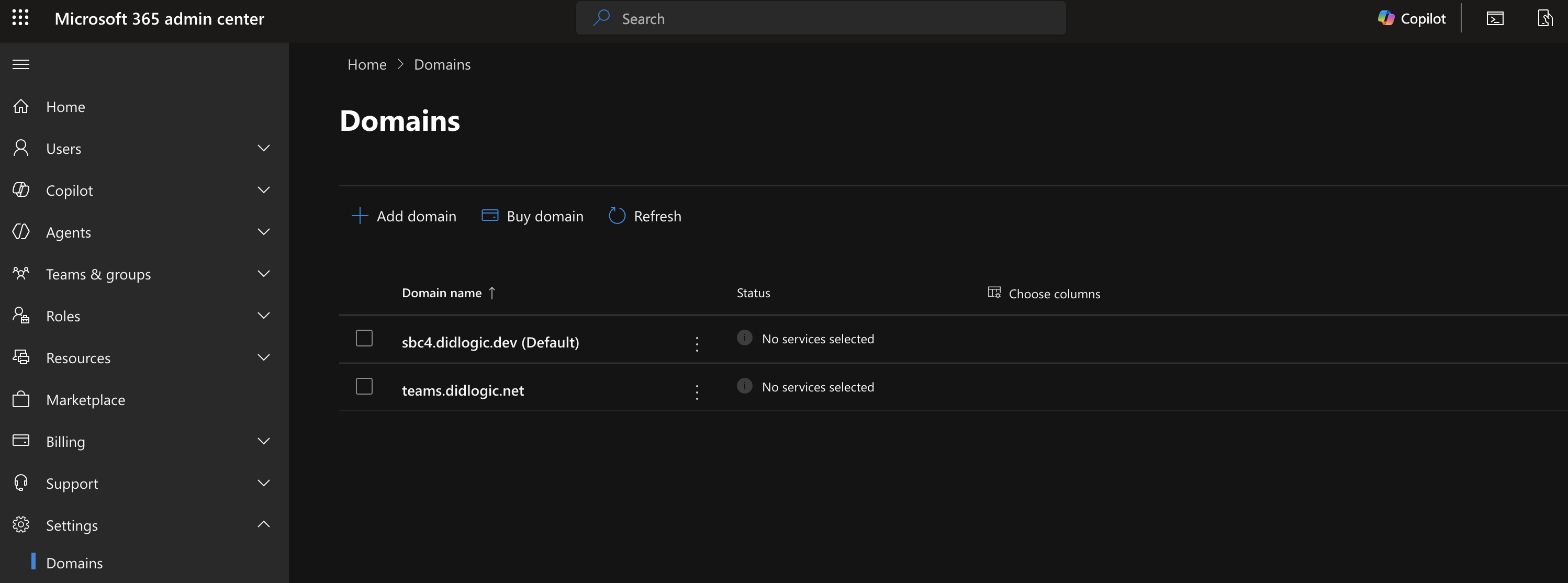
Sign in to the Microsoft 365 admin center, open Domains and click Add domain.
-
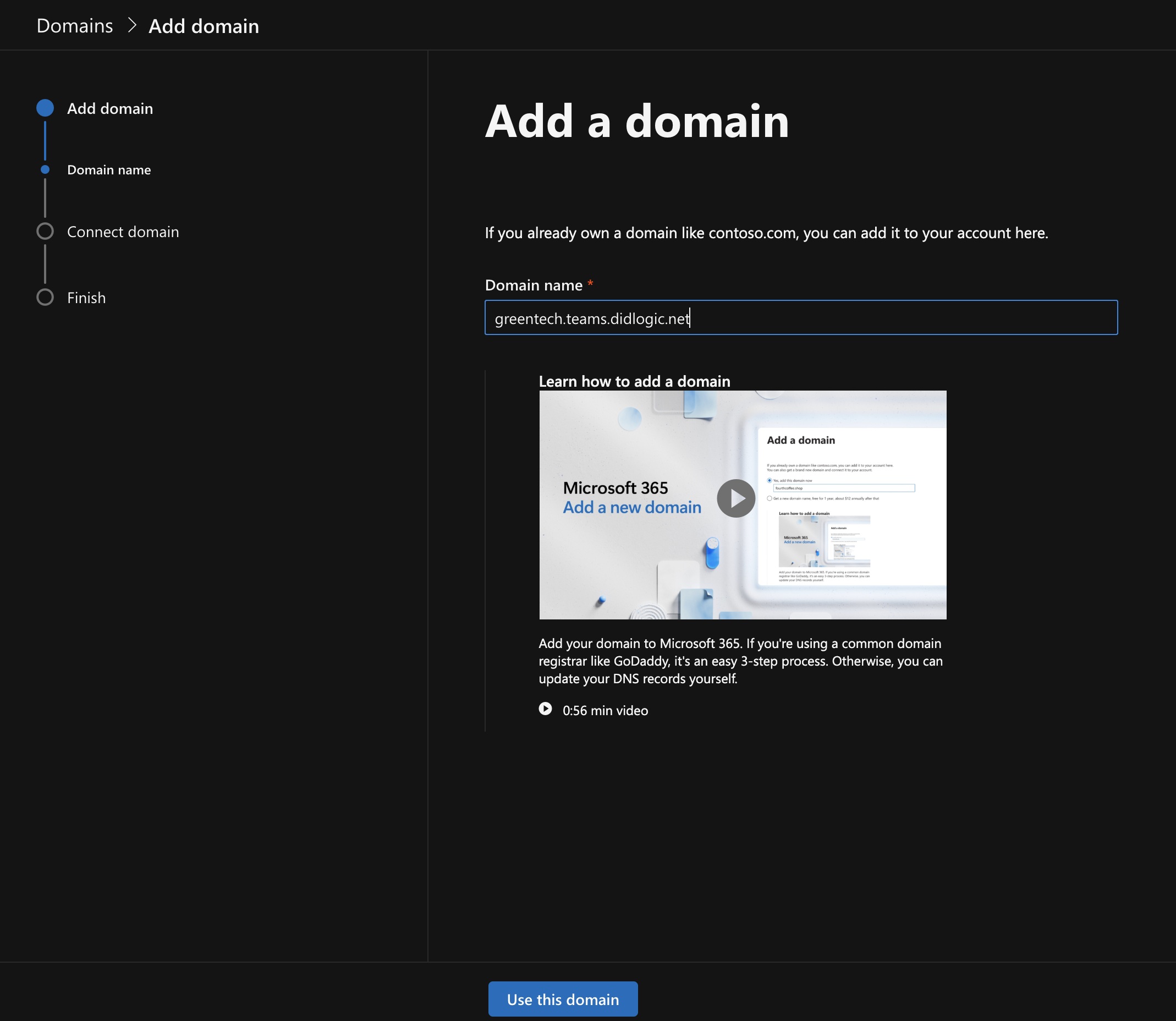
Enter the domain: {your_company_name}.teams.didlogic.net (for example, greentech.teams.didlogic.net) and click "Use this domain."
-
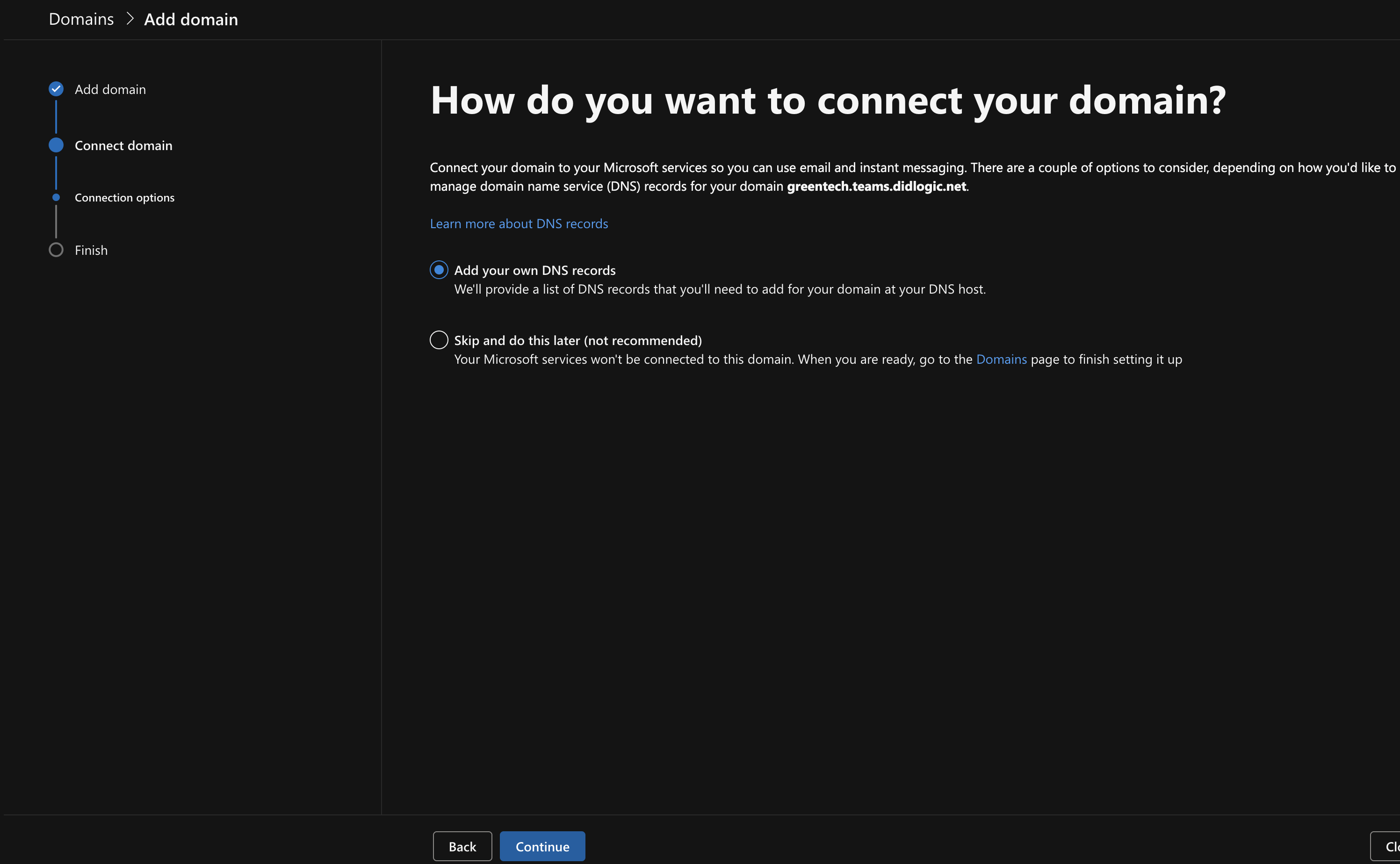
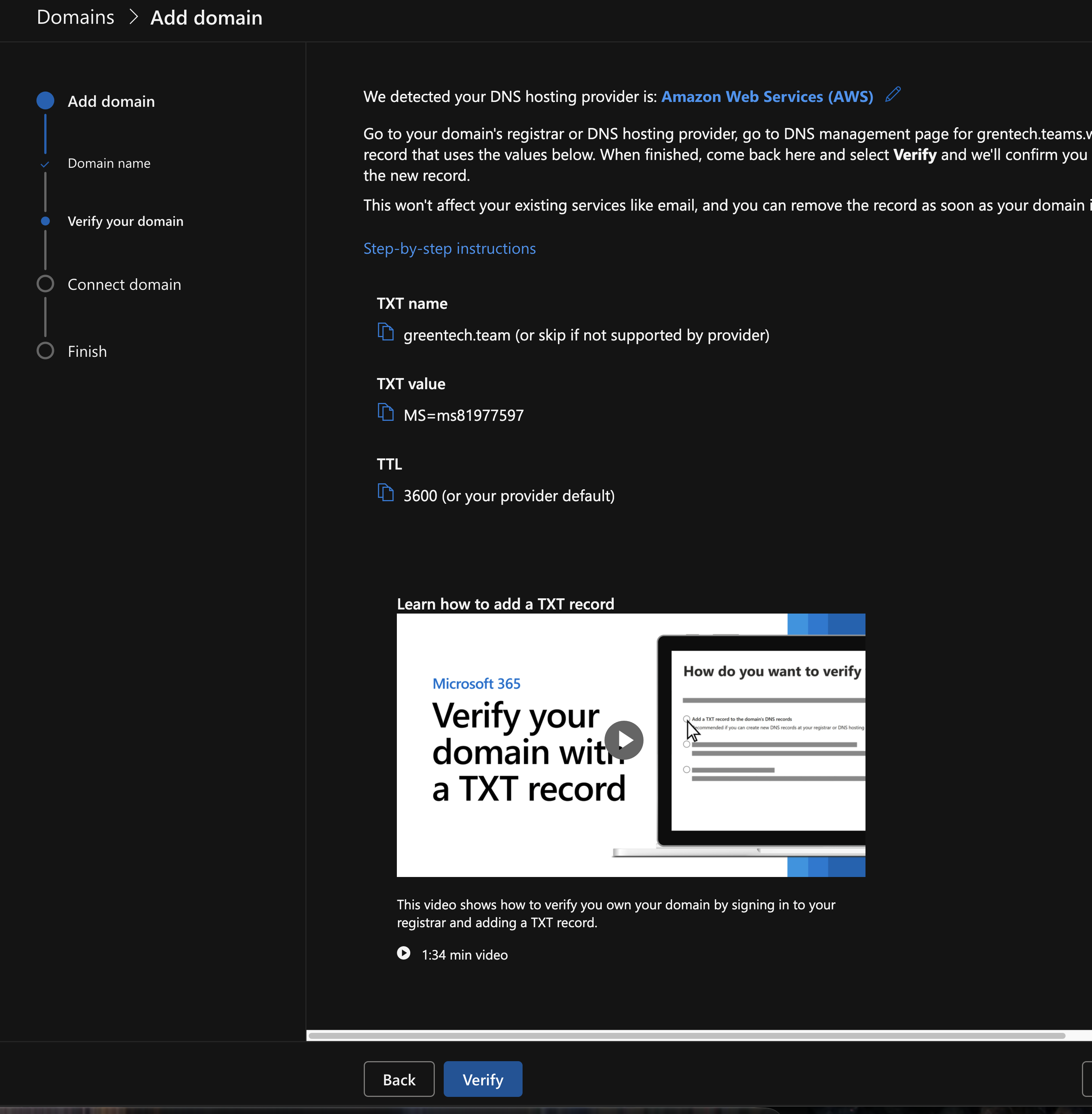
Choose "Add a TXT record to the domain's DNS record". Please do not click "Verify" yet. Leave the page open. The TXT record has to be added on our side first, or verification fails.
-
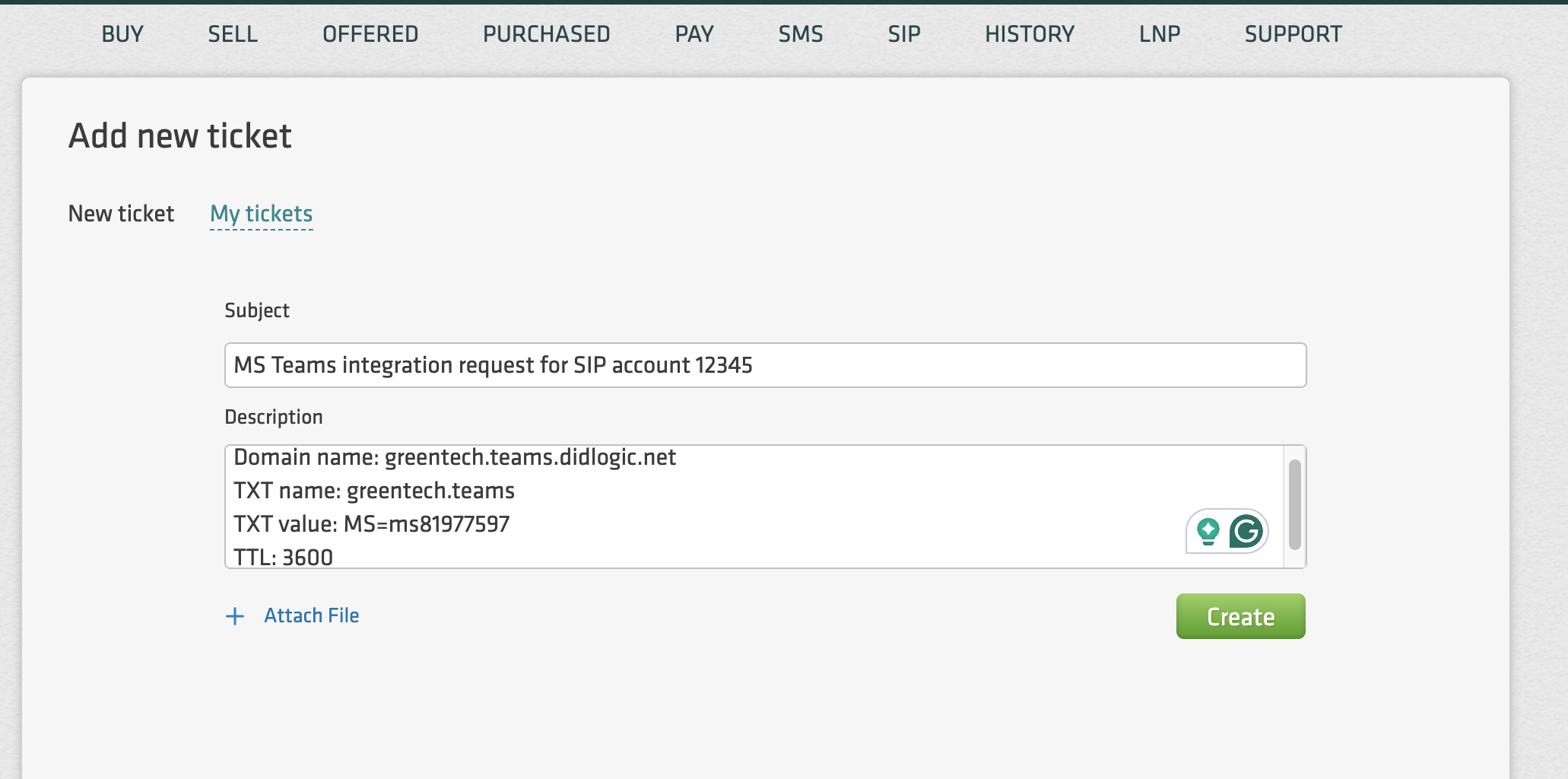
Open a new support ticket:
- Subject:
MS Teams integration request for SIP account {your SIP account number} - Description: the domain, TXT name, TXT value and TTL
- Subject:
-
Wait for our confirmation that the domain is configured.
-
Return to the Microsoft 365 admin center and click Verify. The domain appears under Domains.
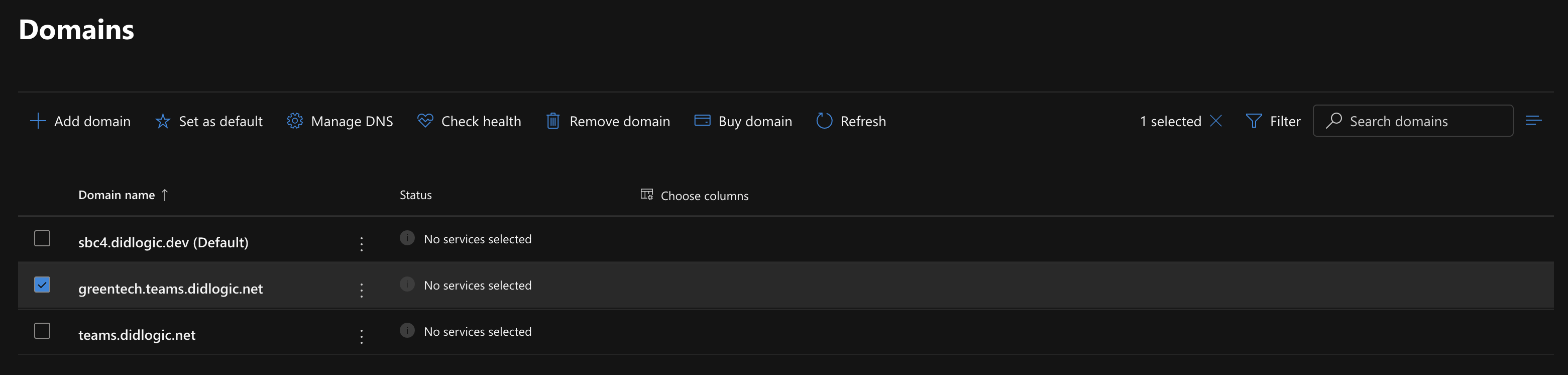
Microsoft lets you use a domain for an SBC only after at least one licensed user has that domain in their sign-in name. Create a user such as [email protected] and assign them a license that includes Teams.
Part 2. Connect the SBC in Teams
- In the Teams admin center, go to Voice > Direct Routing and click Add.
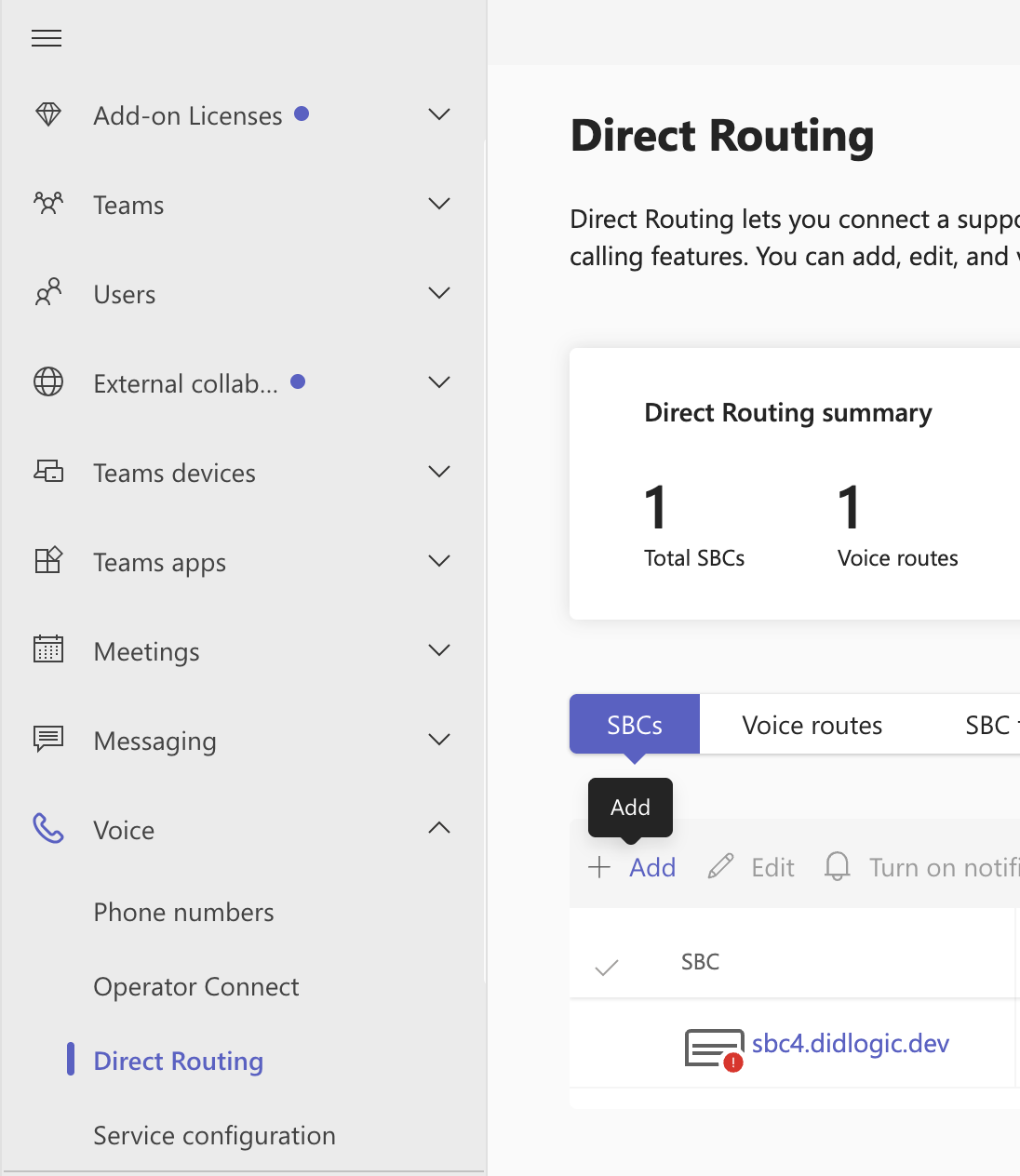
- Enter the SBC FQDN: {your_company_name}.teams.didlogic.net

- Enable the SBC by turning on the "Enabled" option and set the signalling port to 5061.
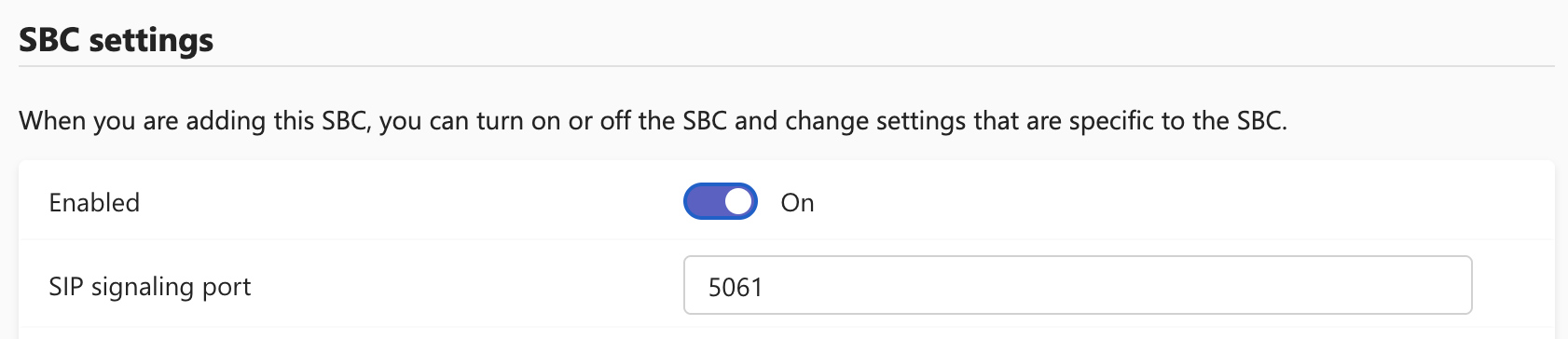
- Click Save.
Part 3. Route incoming calls
In didlogic
-
Open Purchased and click Edit on the number you want to use in Teams.
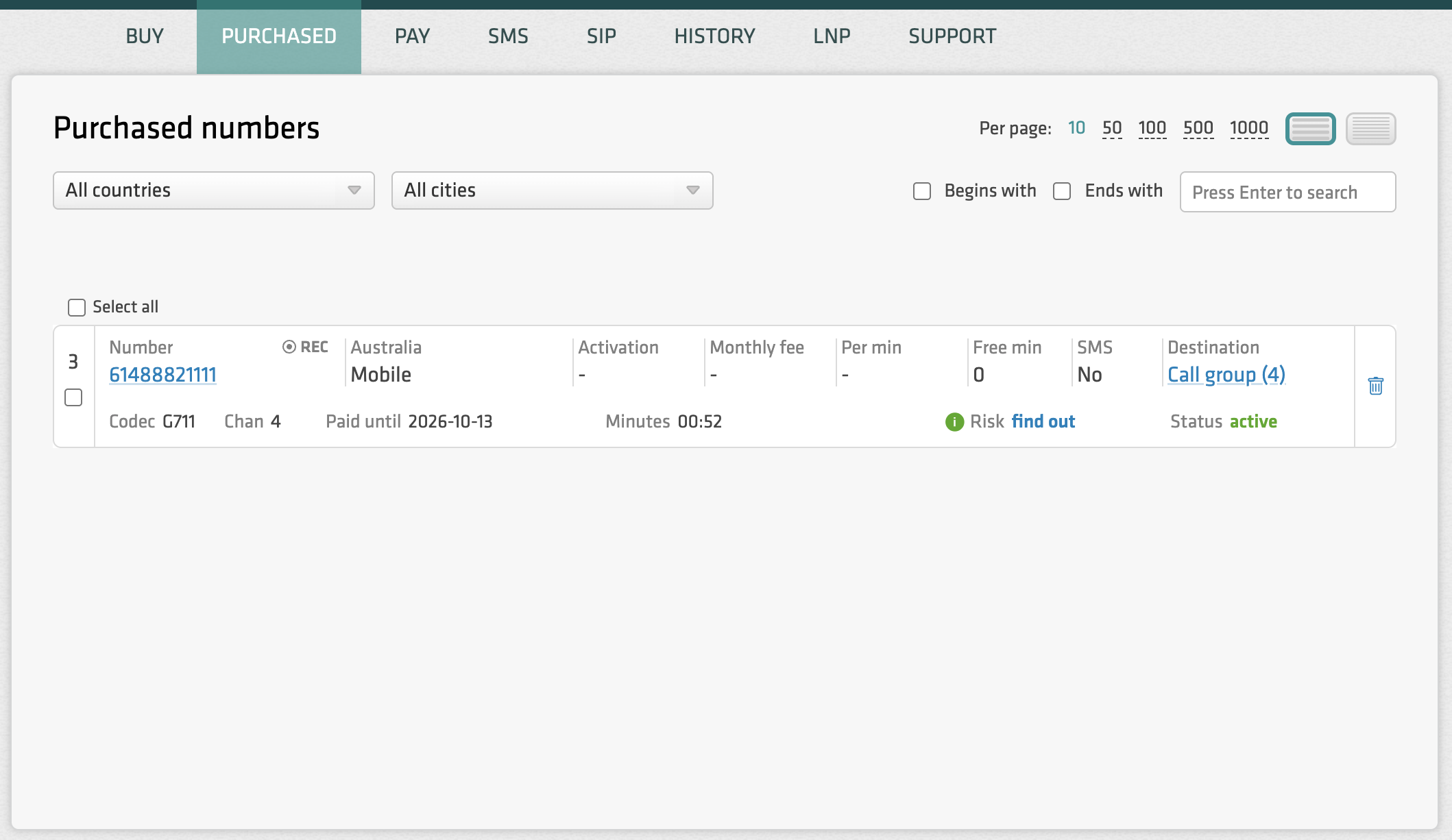
-
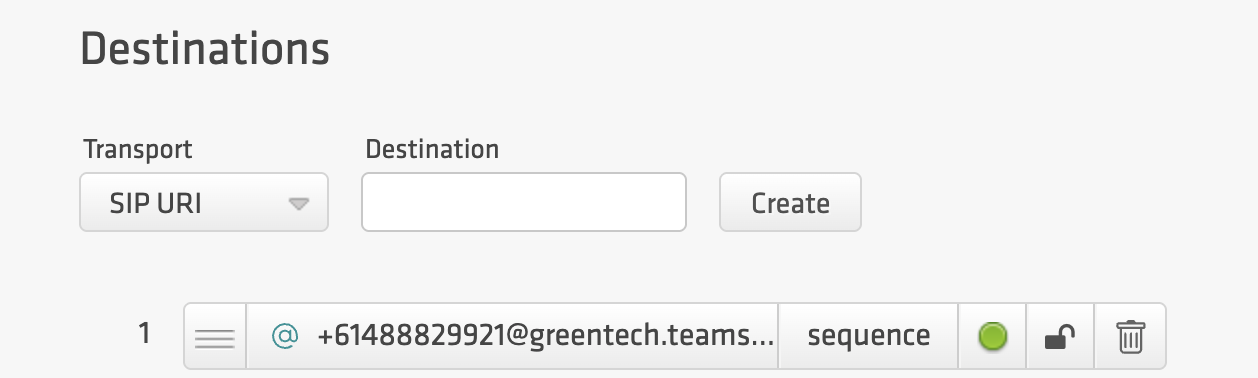
Choose SIP URI in the Forward to dropdown.
-
Set the destination SIP URI to +[DID_number]@{your_company_name}.teams.didlogic.net.
For example, for DID number 61488821111,+61488821111@{``**your_company_name}.teams.didlogic.net**. -
Click Add. If the number already has other destinations, move this one to the top of the list.
In Teams
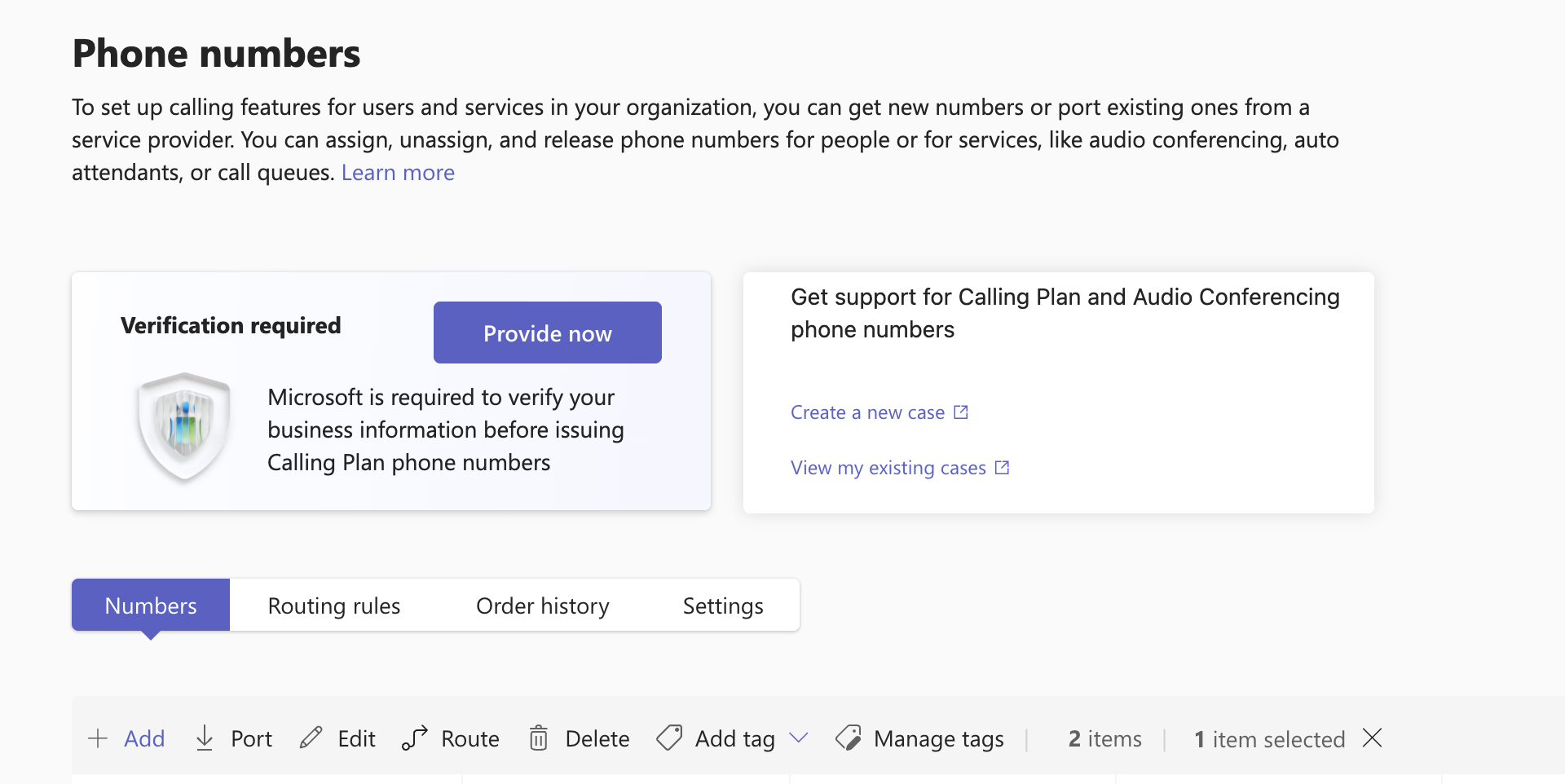
- Go to Voice > Phone numbers, open the Numbers tab and click Add.
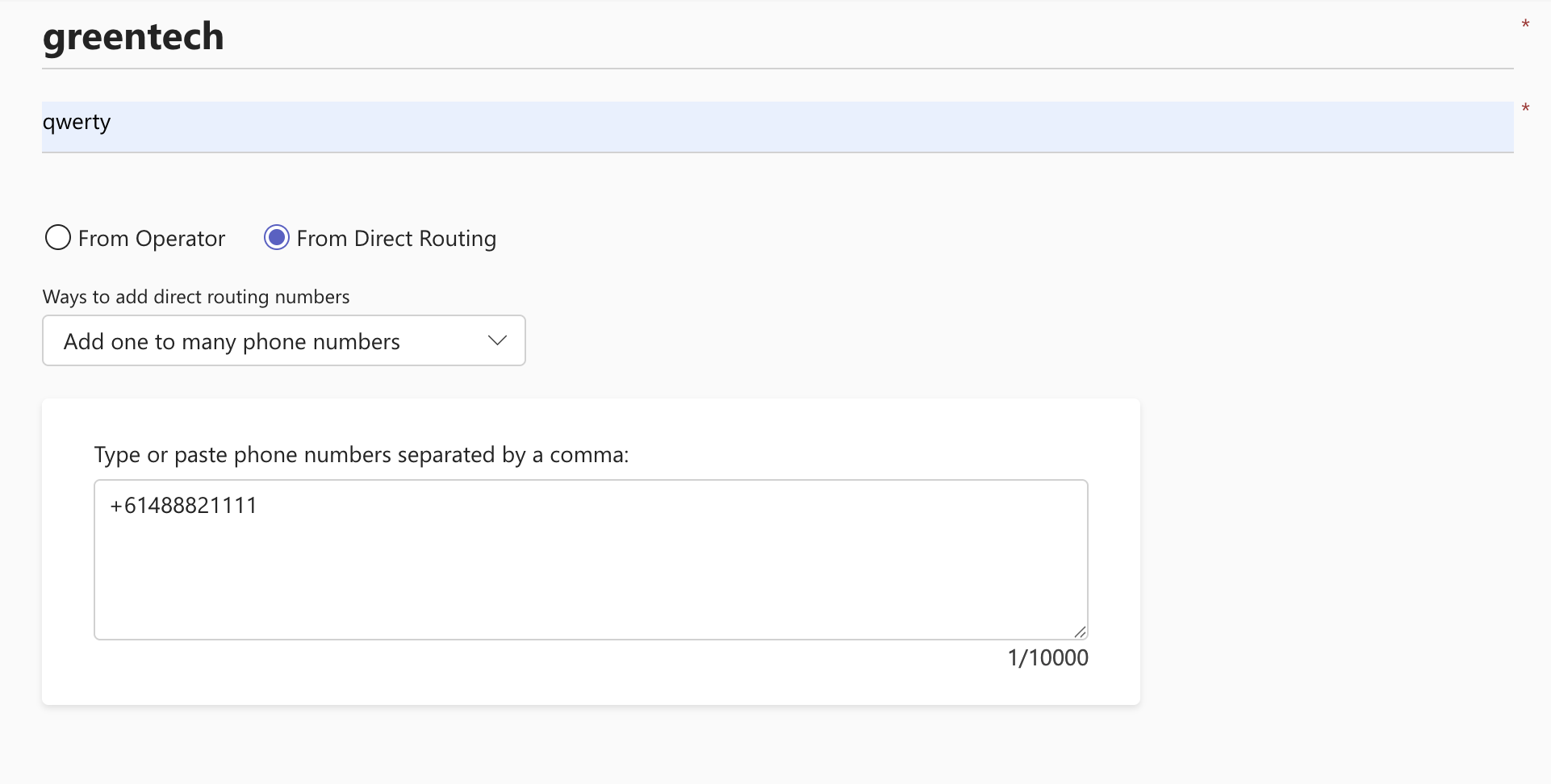
- Enter a name and description, then add the number in international format with
+, for example+61488821111.
- Click Finish. The request appears in Order history.
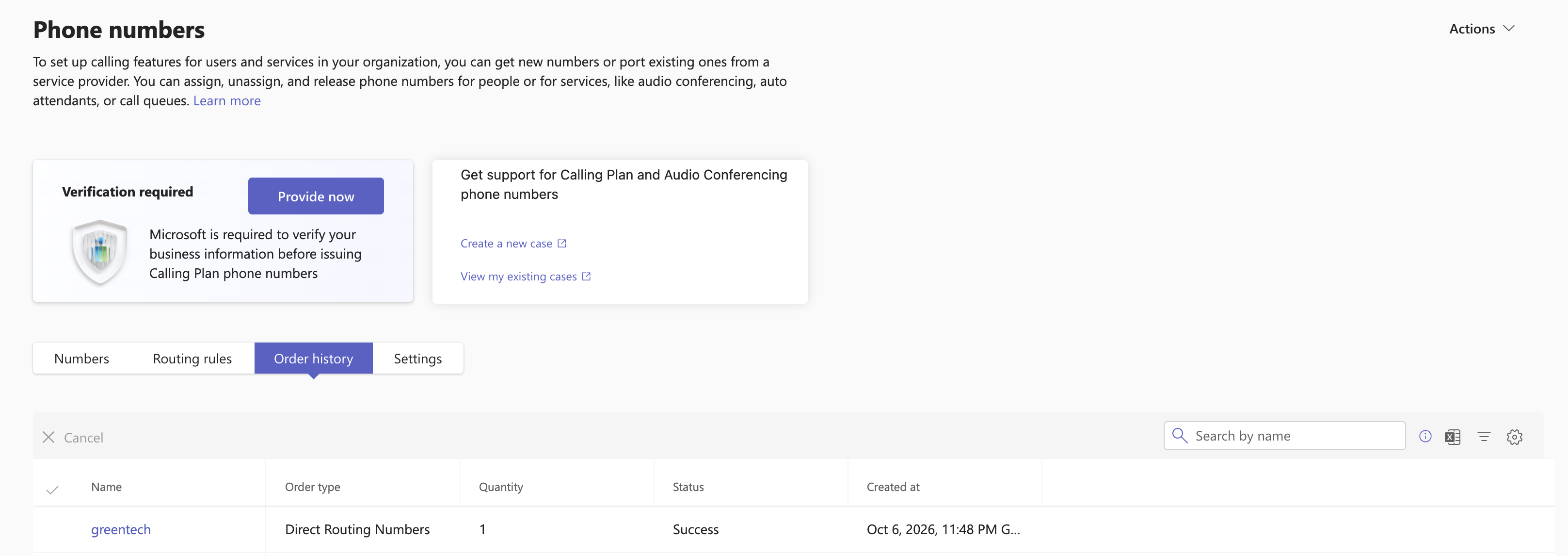
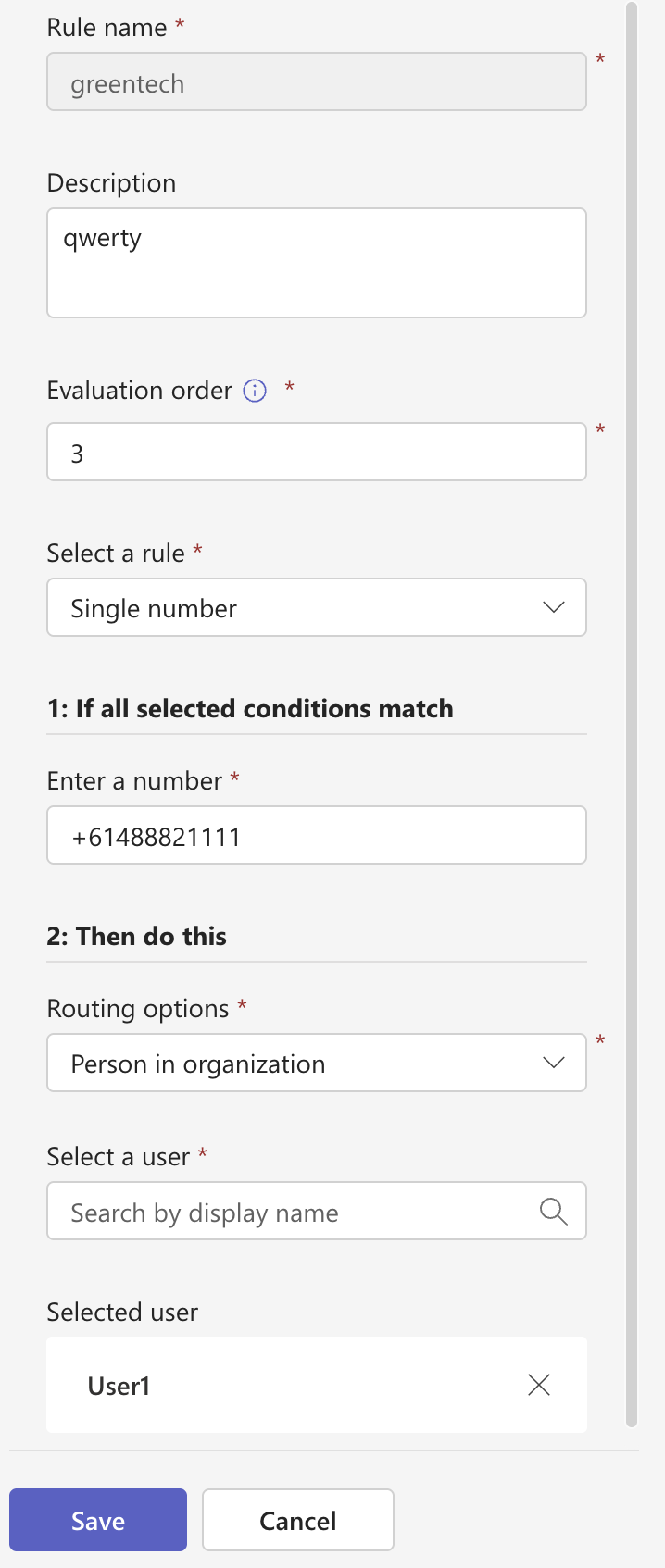
- When the order status is Success, go to Routing rules and create an inbound rule that sends calls for this number to a user in your organization.
Part 4. Route outgoing calls
-
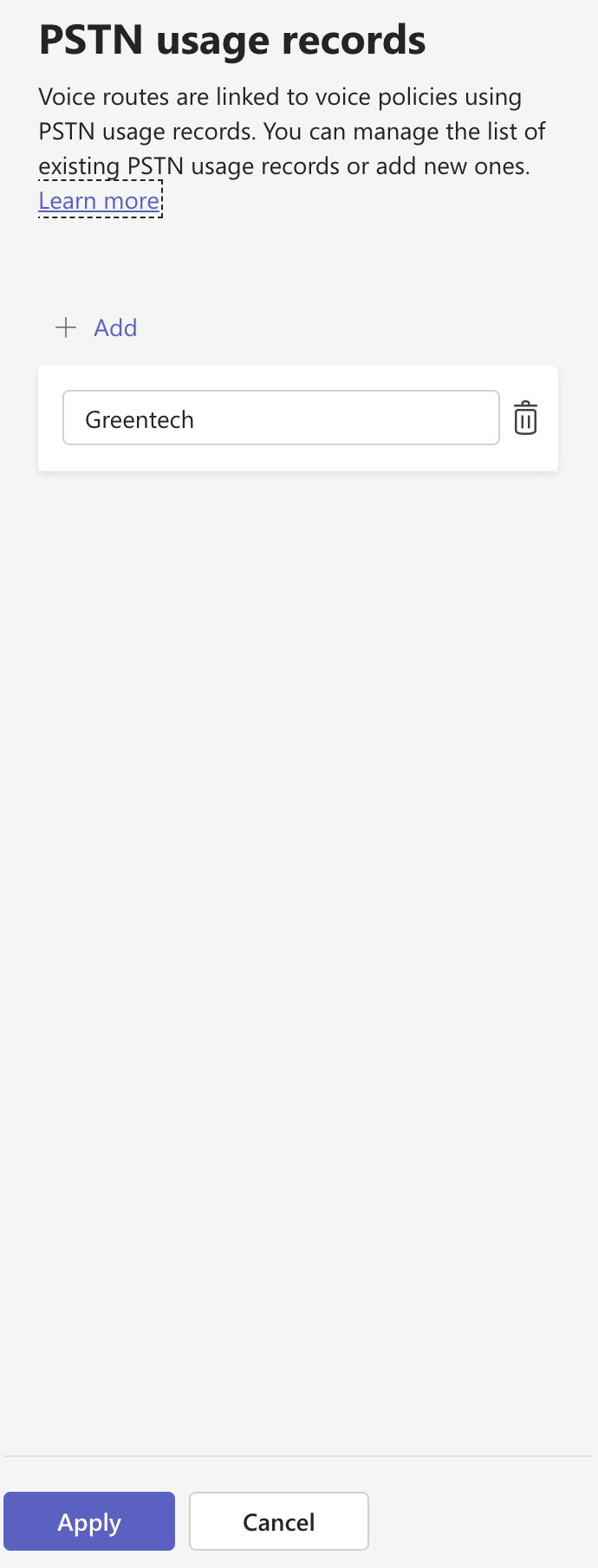
Go to Voice > Direct Routing, select Manage PSTN usage records and add a record, for example
didlogic.
-
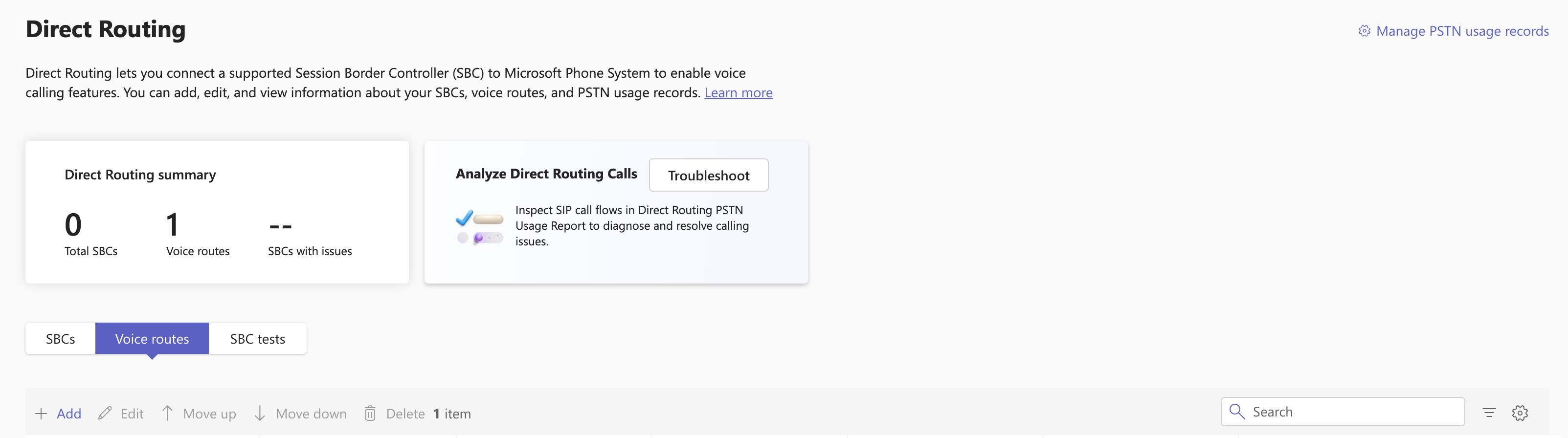
Open Voice routes and add a voice route:
-
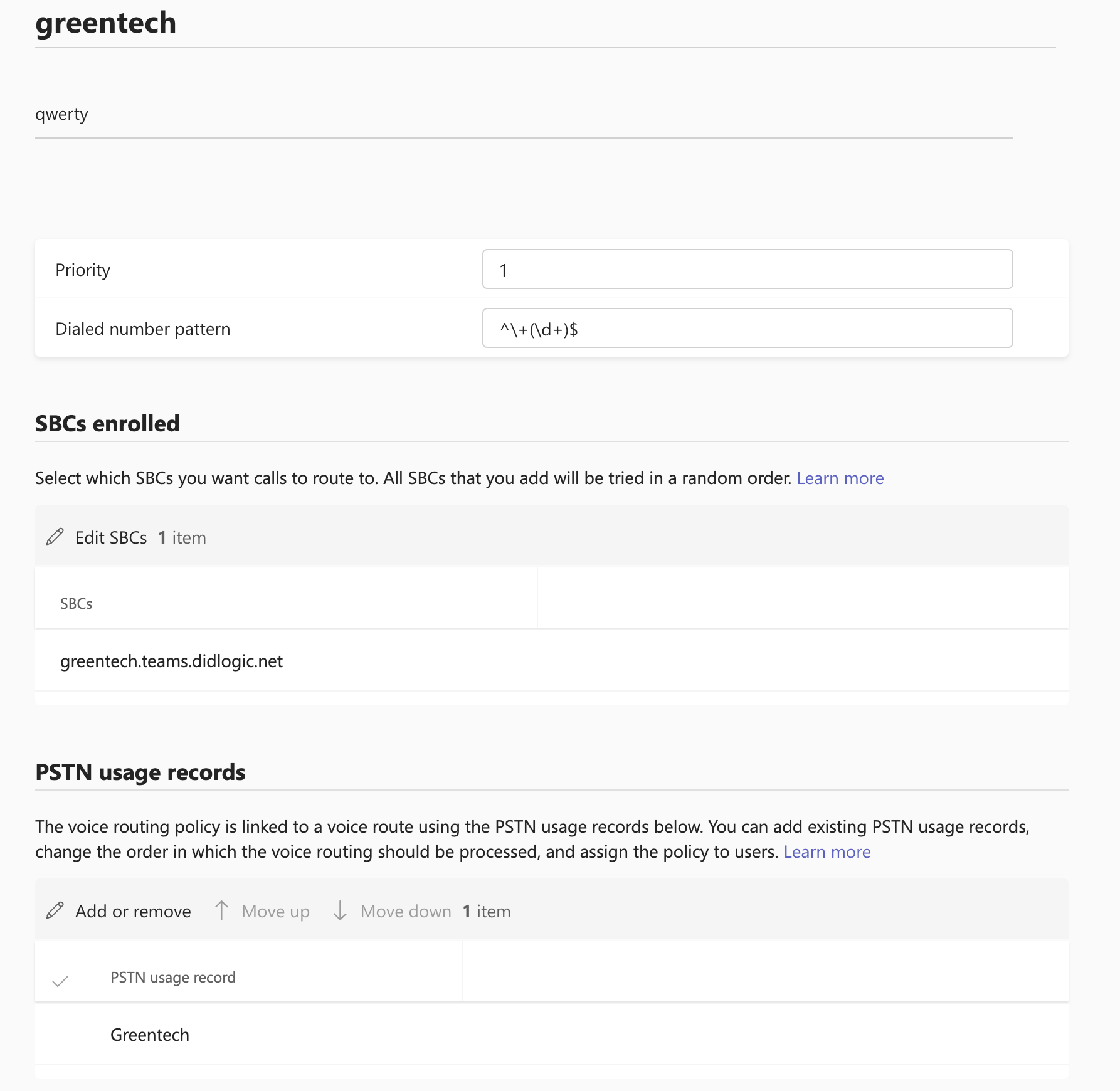
Add the "Dialed number pattern", for example, Catch-All regexp
^+(\d+)$or you can specify an exact pattern for dialled numbers. -
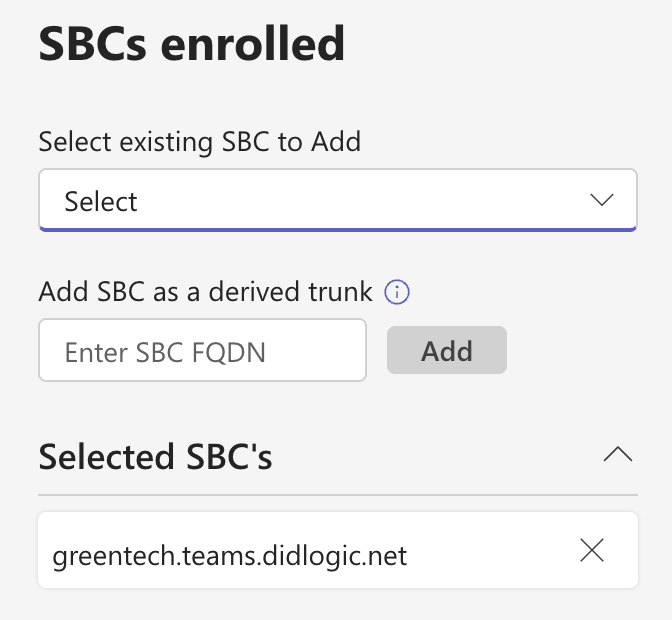
Add your SBC to "SBC enrolled"
-
Add the "PSTN usage records": the record from step 1. Here is an example of the added voice route:
-
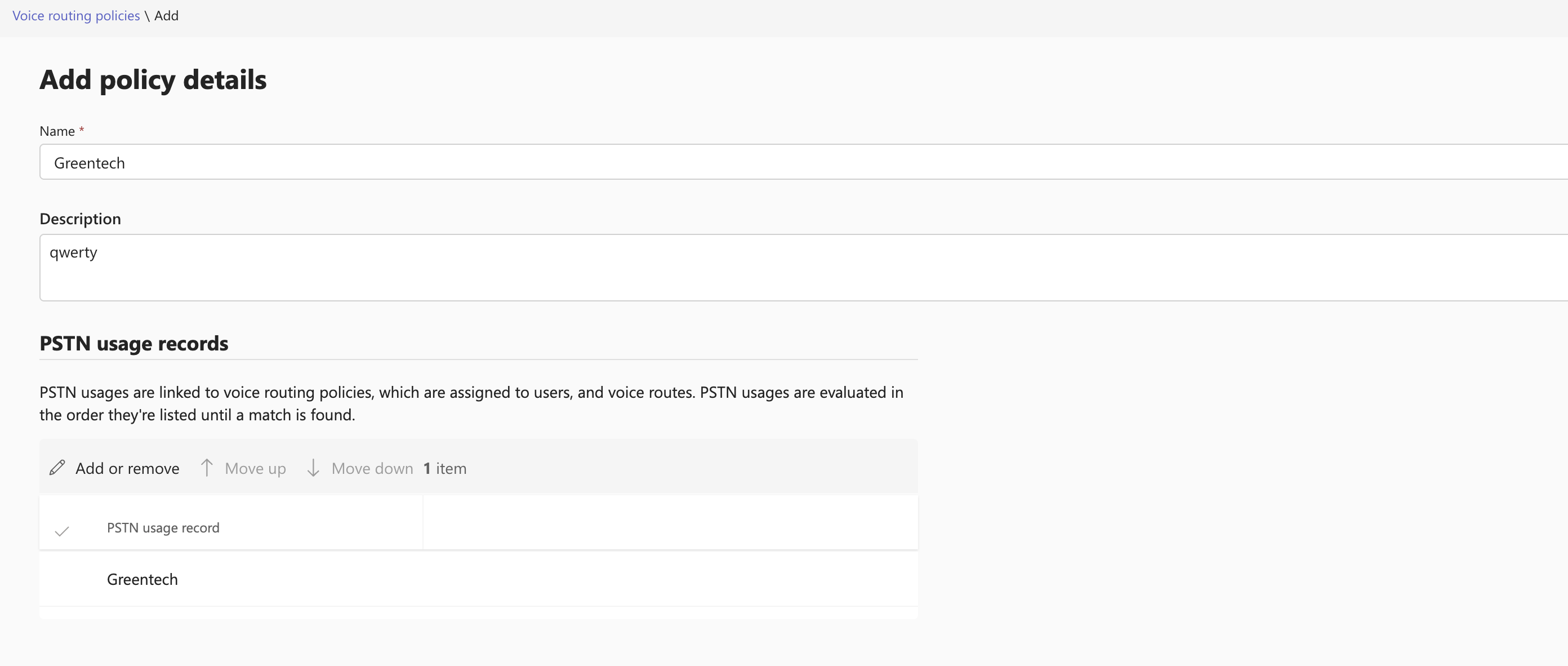
Go to Voice routing policies, add a policy and select the PSTN usage record from step 1.
-
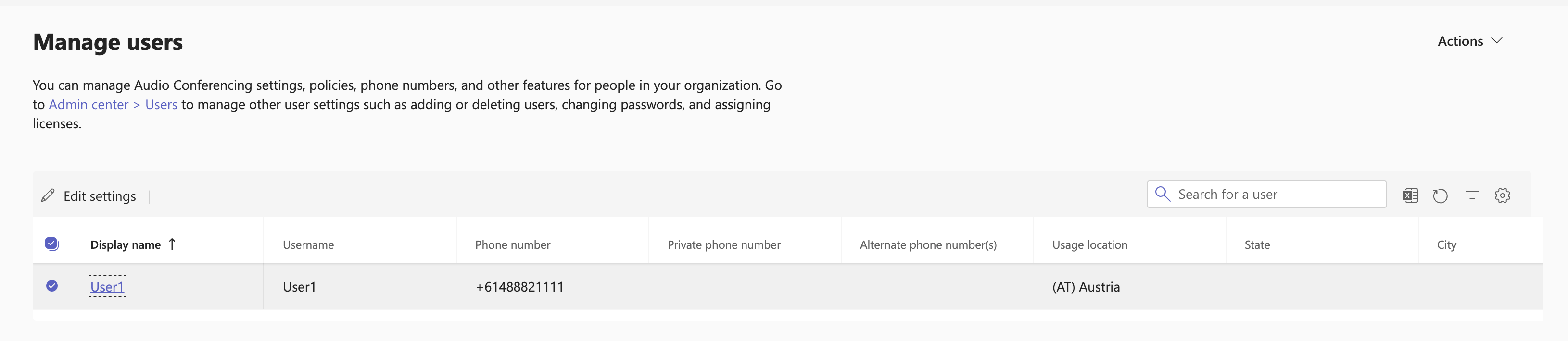
Go to Users and select a user.
-
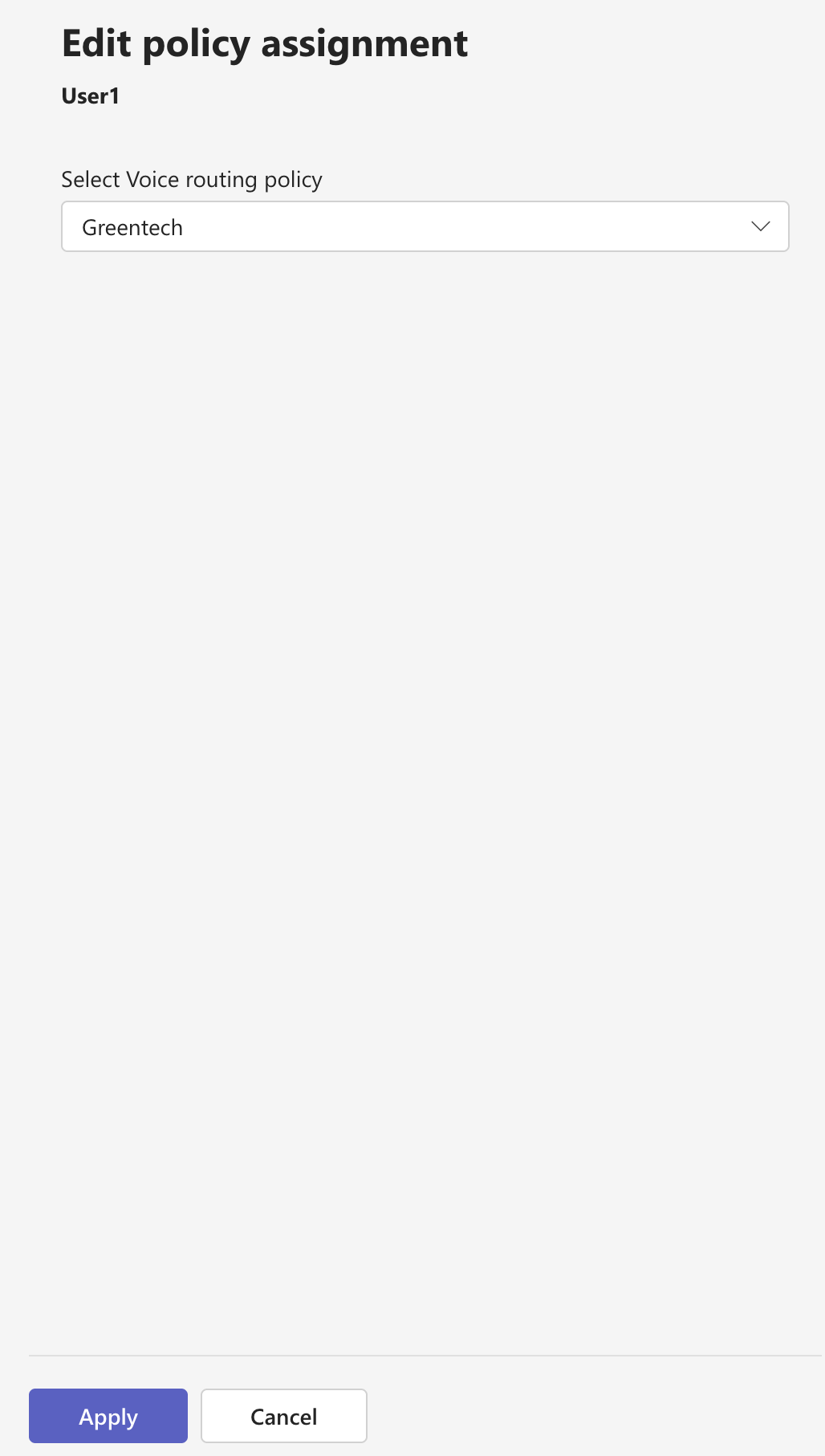
Open Policies, click Edit, change Voice routing policy to the policy you created.
-
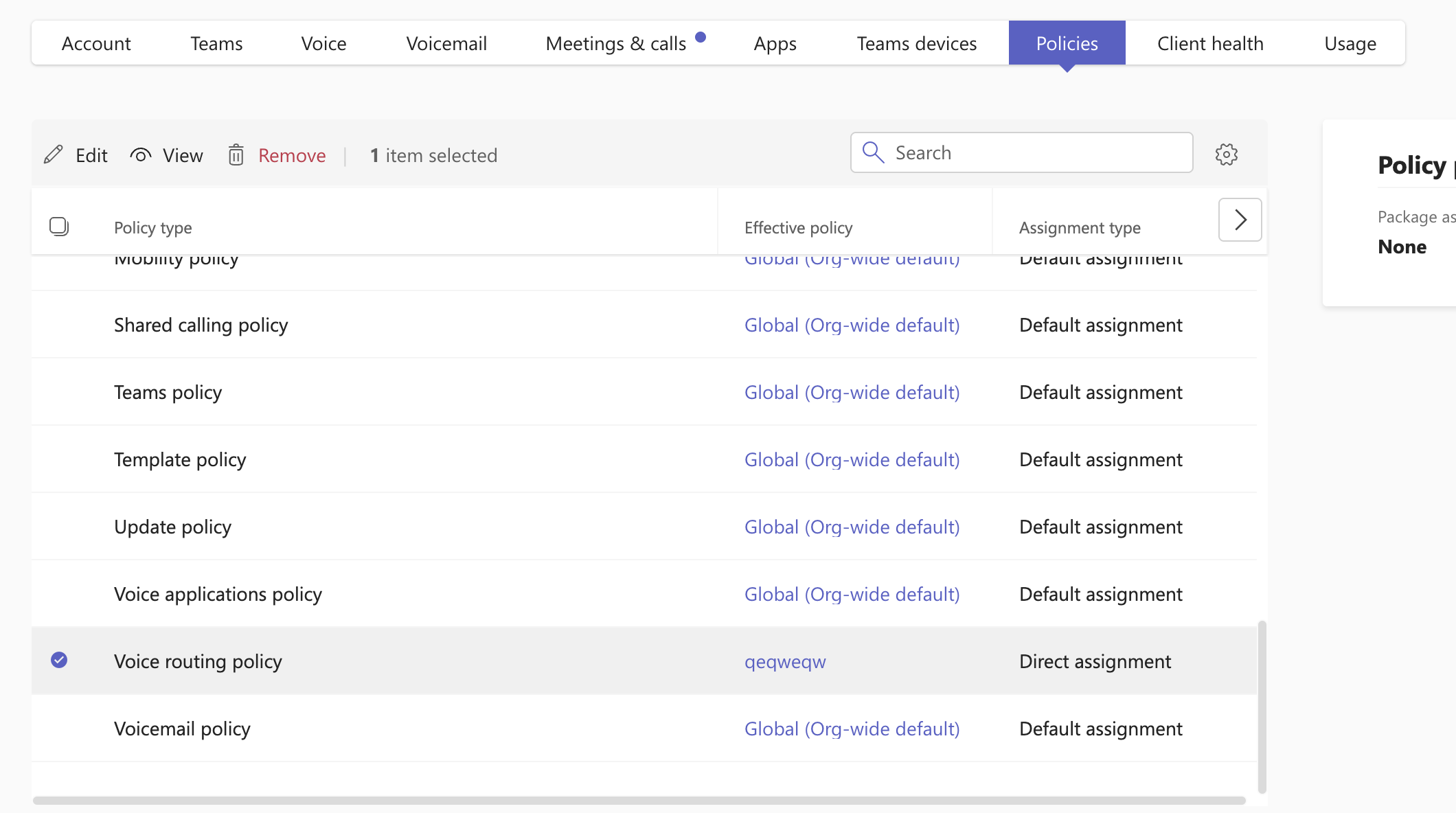
Click Apply. Repeat for every user who should make calls.
Policy changes can take some time to reach Teams clients. After that, users can place outgoing calls from Teams through didlogic.
Need help?
If calls don't connect after setup, open a support ticket with your SIP account number and the subdomain.