Zoiper
This guide outlines the steps to configure Zoiper with the didlogic trunks. Before placing or receiving a call, you should have an active phone number and a SIP account created on your didlogic account.
Configure SIP trunk in Zoiper
Download the Zoiper application from the official website: Download Zoiper.
Open Zoiper. Proceed with the authorization. Fill in the appropriate fields:
-
Login: SIP ID from your didlogic account
-
Password: Password of your SIP account
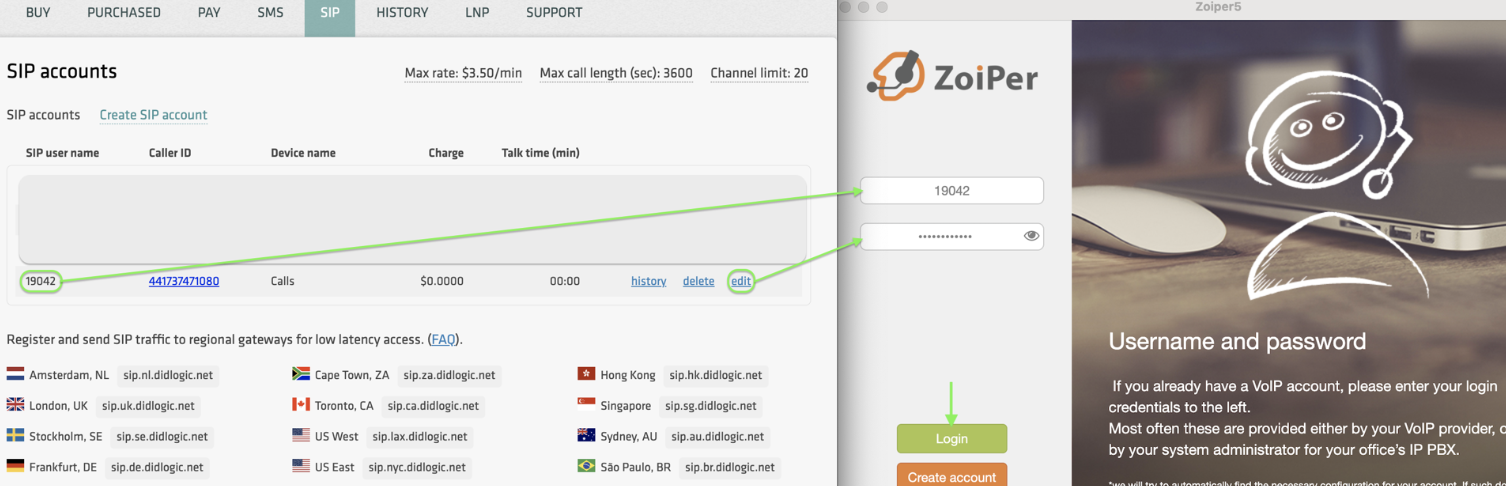
-
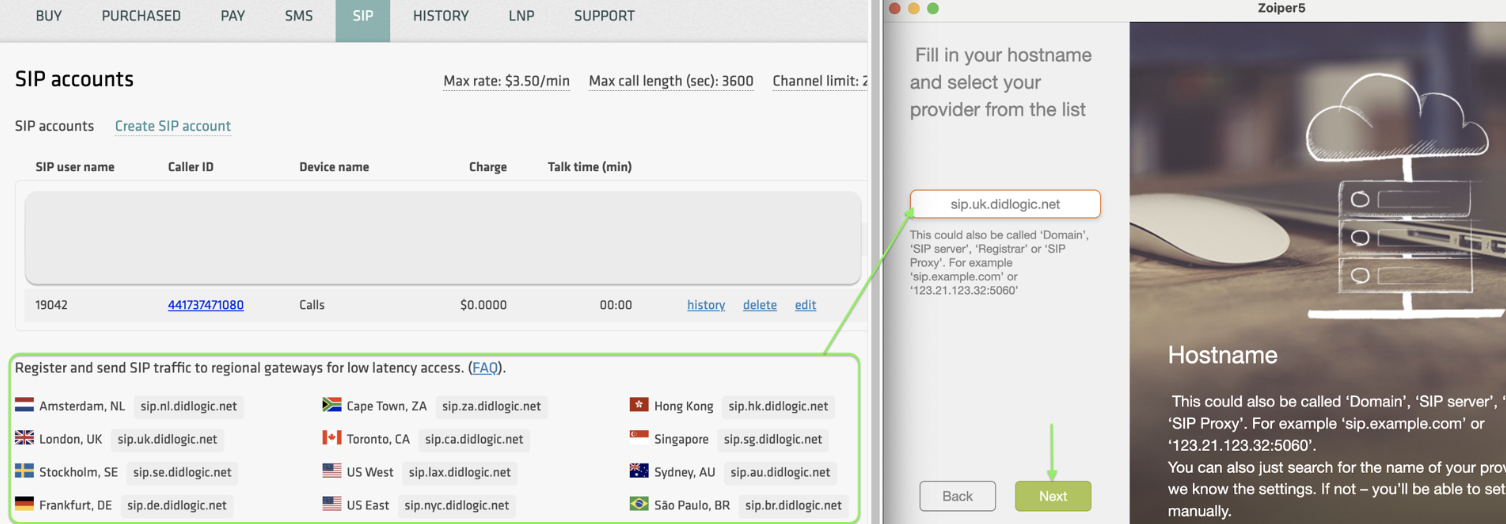
Hostname:
sip.***.didlogic.net(use one of the regional SIP gateways. We recommend selecting the regional gateway closest to you).
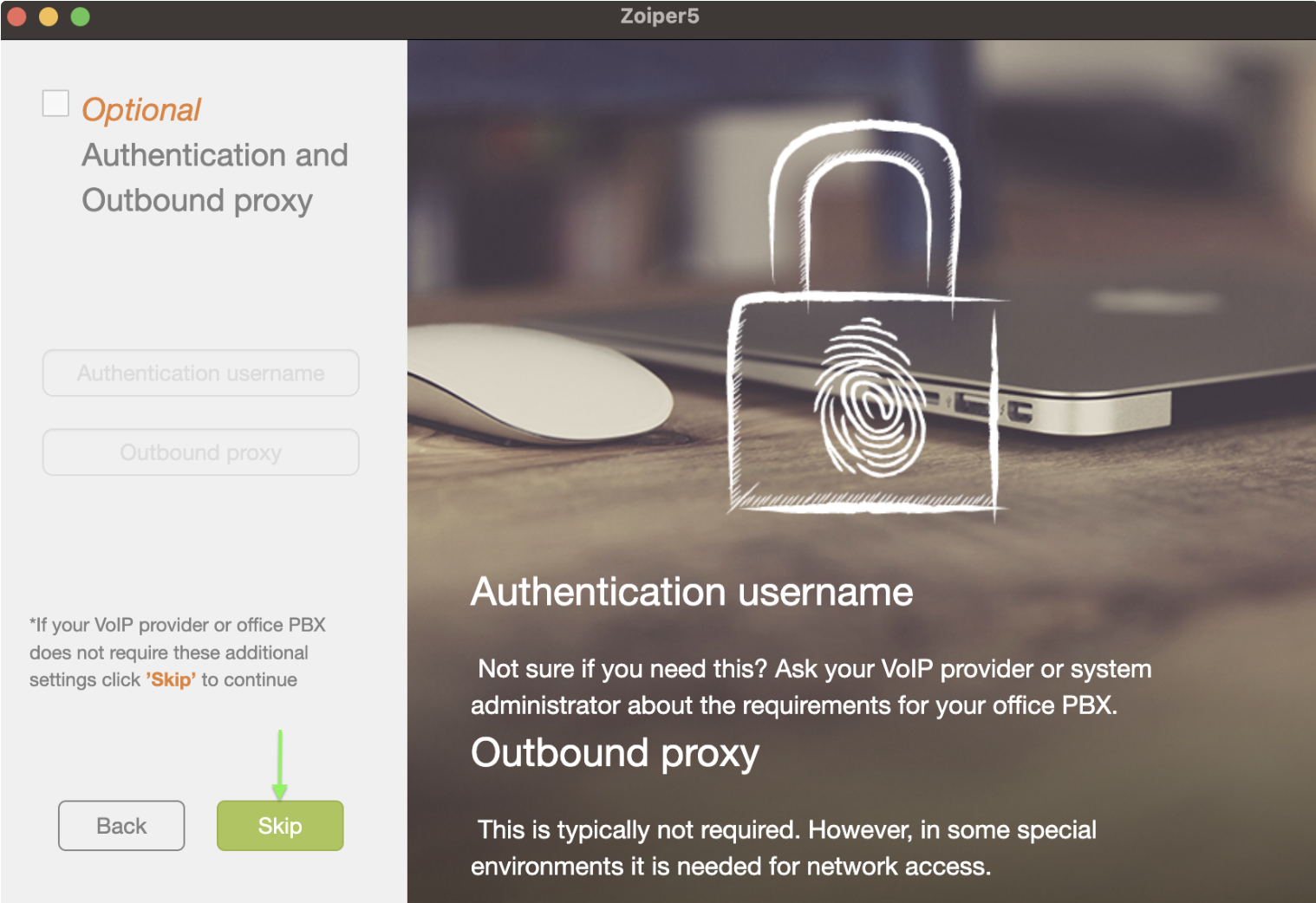
Skip the next step.
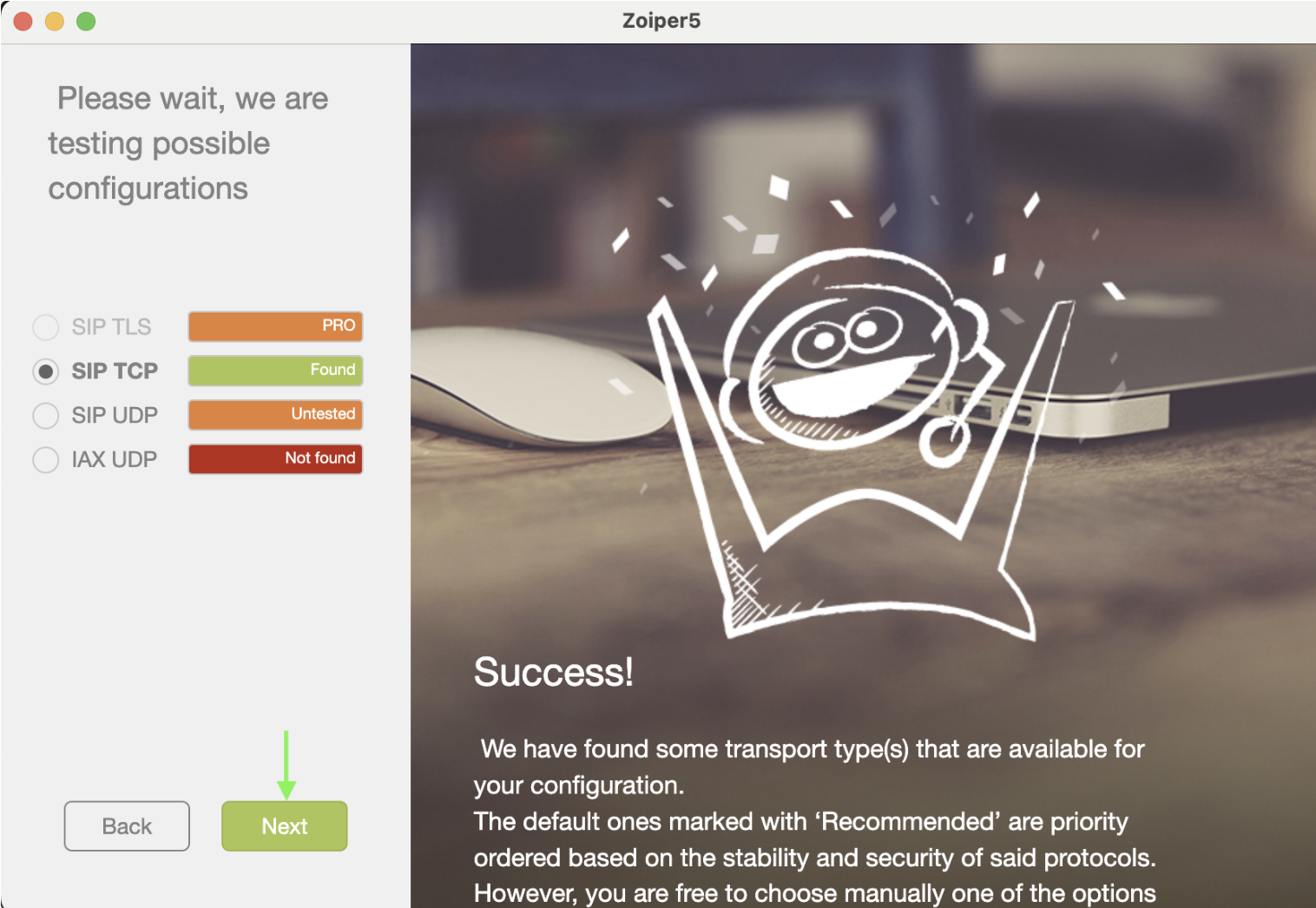
Wait for one of the configurations to be tested and marked "Found".
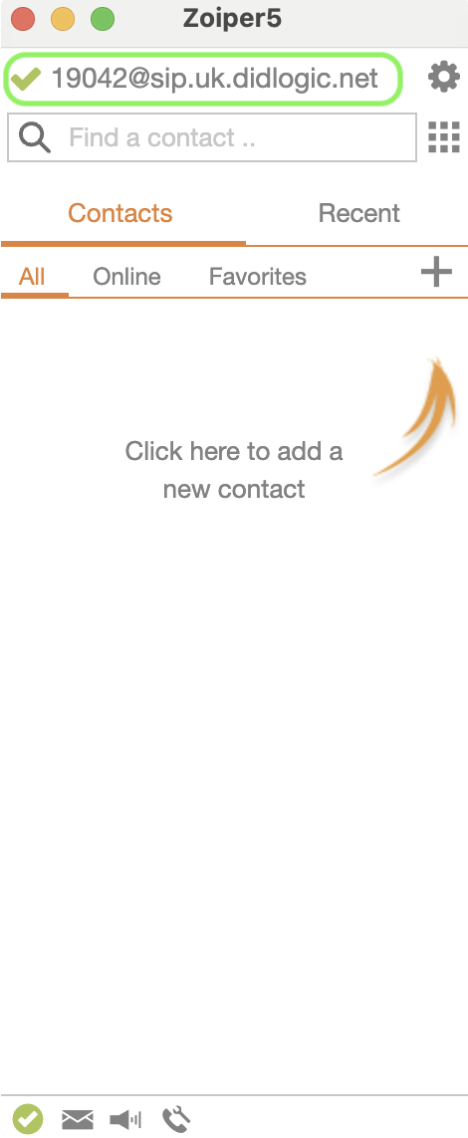
After completing the authorization, select the configured trunk to make outbound calls:
Troubleshooting
If the outbound call fails check the following:
- You've completed all the steps in this guide.
- You're dialing the phone number in the international E.164 format (without leading
00or+and with the country code). - Max call rate limit set on your SIP trunk or account is enough to call the desired destination. You can find your effective rates in the SIP section.