Zoho CRM C2C
Add a call button to your Zoho CRM contacts. When an agent clicks it, didlogic rings the agent's phone first and then connects the call to the contact.
How it works
- Custom button. You add a button to the Contacts module in Zoho CRM.
- Deluge function. The button runs a function that sends a request to the didlogic Click2Call API.
- Agent's phone rings. didlogic calls the agent's SIP account first.
- Contact is connected. Once the agent answers, didlogic dials the contact and bridges the call.
Before you begin
You need:
- A didlogic API token. Create one on the API & Webhooks page with + Create Token. The token is shown only once, so copy it and store it securely right away.
- The agent's SIP account. Find the five-digit SIP account number on the SIP Accounts page. The agent's phone, softphone or webphone must be registered with this account to ring.
- A caller ID. One of your didlogic numbers, in E.164 format, to show on the call.
- Zoho CRM administrator access, to create custom buttons and functions.
Create the button
-
In Zoho CRM, click Setup (the gear icon) in the top right corner.
-
Under Customization, click Modules and Fields, then open the Contacts module.
-
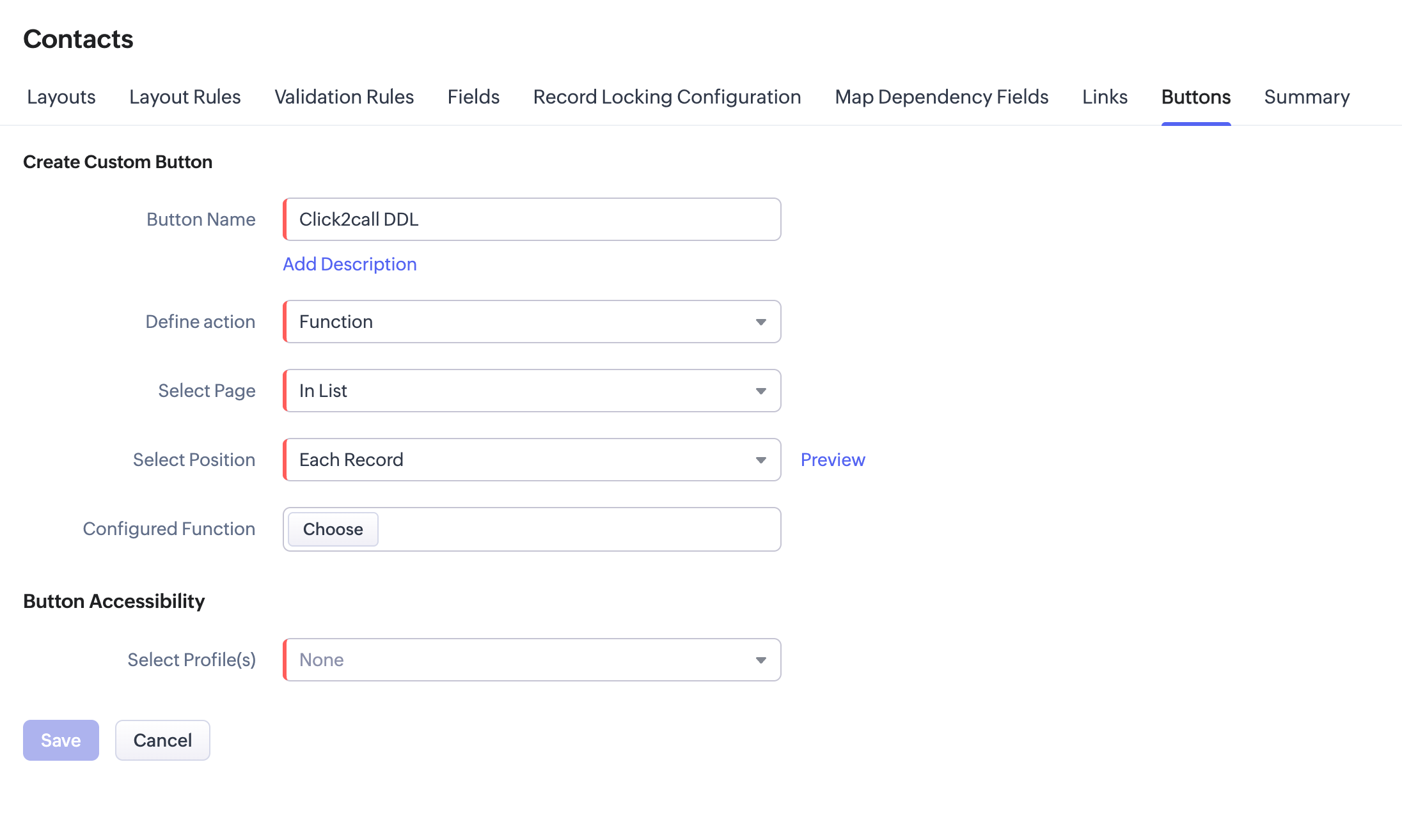
Open the Buttons tab and click + Create Custom Button.
-
Configure the button:
- Button Name: a descriptive name, for example
Call via didlogic - Define Action:
Function - Select Page:
In List - Select Position:
Each Record
- Button Name: a descriptive name, for example
-
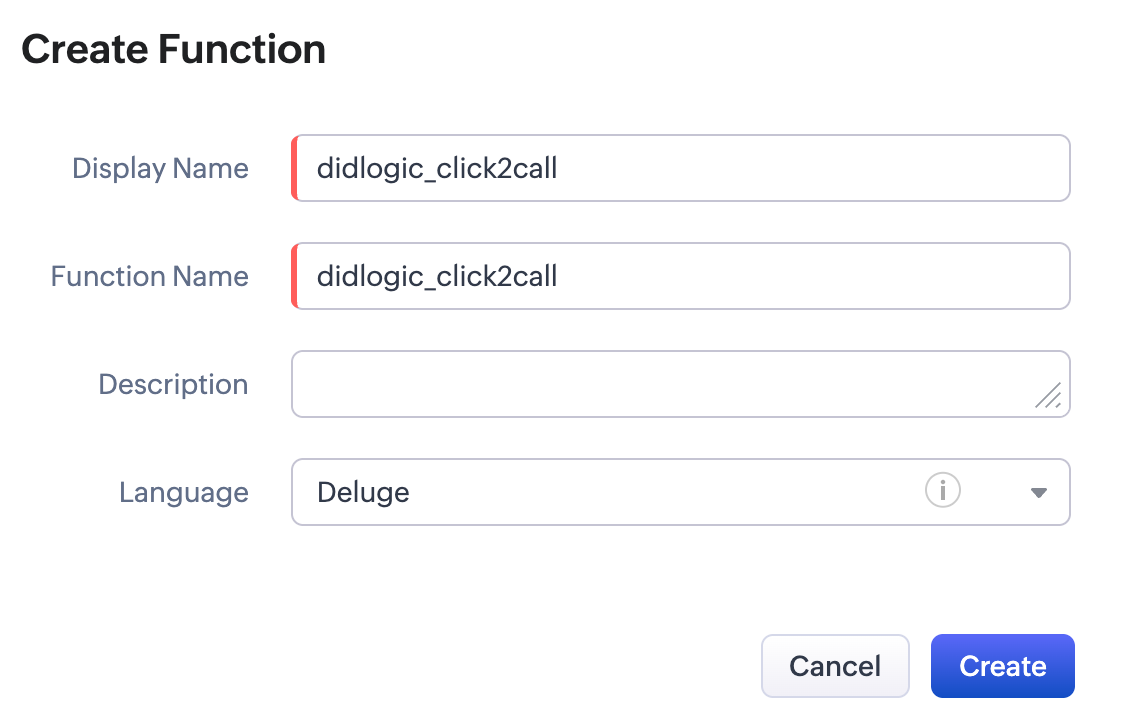
Under Configured Function, click Write your own.
-
Enter a display name and a function name, for example
didlogic_click2call, select Deluge as the language and click Create. -
Replace the default code in the Deluge editor with the script below, then replace
YOUR_SIP_ACCOUNT,YOUR_CALLER_IDandYOUR_DIDLOGIC_API_TOKENwith your values:string button.didlogic_click2call(String contactId)
{
contactDetails = zoho.crm.getRecordById("Contacts", contactId.toLong());
rawPhone = contactDetails.get("Phone");
if(rawPhone == null || rawPhone == "")
{
return "This contact has no phone number";
}
cleanDigits = rawPhone.replaceAll("[^0-9]", "");
payload = Map();
payload.put("a_type", "sip_account");
payload.put("a_endpoint", "YOUR_SIP_ACCOUNT");
payload.put("b_number", cleanDigits);
payload.put("a_cli", "YOUR_CALLER_ID");
headers = Map();
headers.put("Authorization", "Bearer YOUR_DIDLOGIC_API_TOKEN");
response = invokeurl
[
url: "https://app.didlogic.com/api/v1/click2call"
type: POST
parameters: payload.toString()
headers: headers
content-type: "application/json"
];
info response;
return "Calling: your phone will ring first";
}Note: The contact's phone number must include the country code, for example
+44 20 1234 5678. The script strips everything except digits, so a number saved without a country code can't be dialed. -
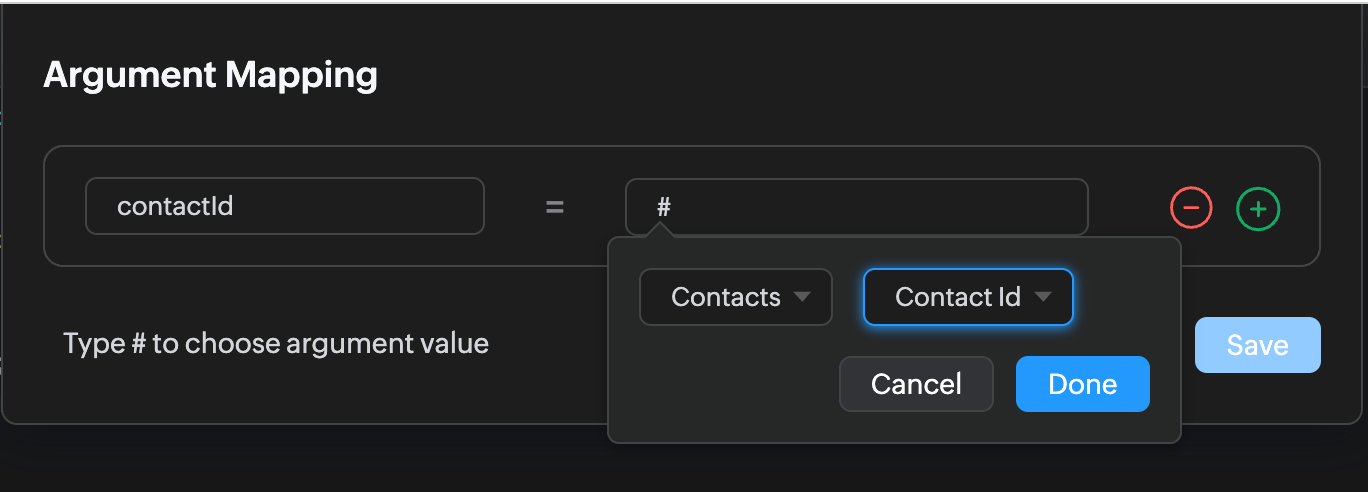
Click Save, then click Associate. In the Value field on the right, type
#, select Contacts and choose Contact Id. -
Select the user profiles that should see the button, for example Administrator or Standard.
-
Click Save on the button configuration page.
Warning: The API token in the script gives full access to your didlogic account. Anyone who can view or edit functions in Zoho CRM can see it, so limit who has that access.
Make a call
-
Make sure the agent's SIP account is registered, for example by opening the webphone.
-
Open the Contacts list in Zoho CRM.
-
Click the button next to a contact. The agent's phone rings first; once the agent answers, didlogic calls the contact.
Request parameters
| Parameter | Type | Required | Description |
|---|---|---|---|
a_type | string | Yes | Must be sip_account |
a_endpoint | string | Yes | The agent's five-digit SIP account number |
b_number | string | Yes | The contact's number in E.164 format |
a_cli | string | No | Caller ID in E.164 format, shown on the agent's phone while it rings |
See the Click2Call API reference for all request parameters and responses.
Troubleshooting
If nothing happens when you click the button, open the function in Zoho CRM and check its execution logs: the info response line shows didlogic's reply, including any error message.
See WebSocket Calls for message formats, signaling payloads and event types.