Retell
This document outlines the technical steps to integrate the Retell AI platform with didlogic. By configuring a SIP Trunk, you can route calls between a didlogic phone number and Retell AI agents for automated voice interactions.
SIP Trunk Configuration
To allow Retell to place and receive calls through our network, you must first connect your didlogic number via SIP Trunking.
-
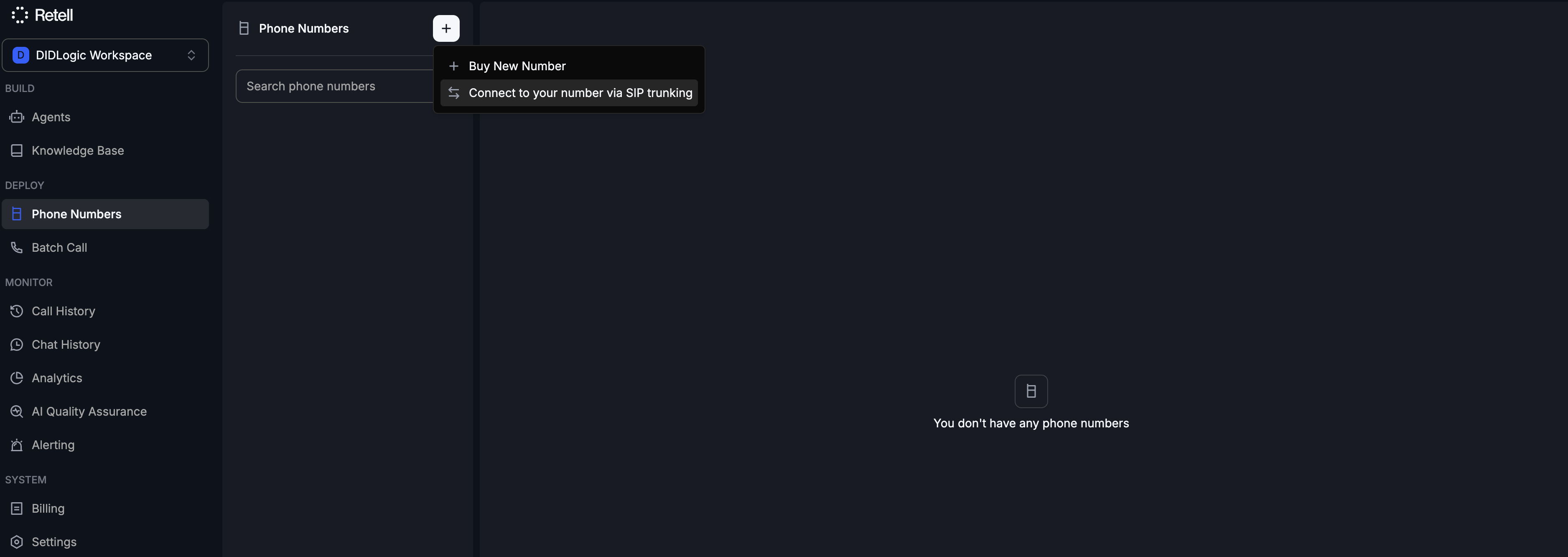
In the Retell Dashboard, navigate to Phone Numbers and click ➕
-
Choose "Connect to your number via SIP trunking".
-
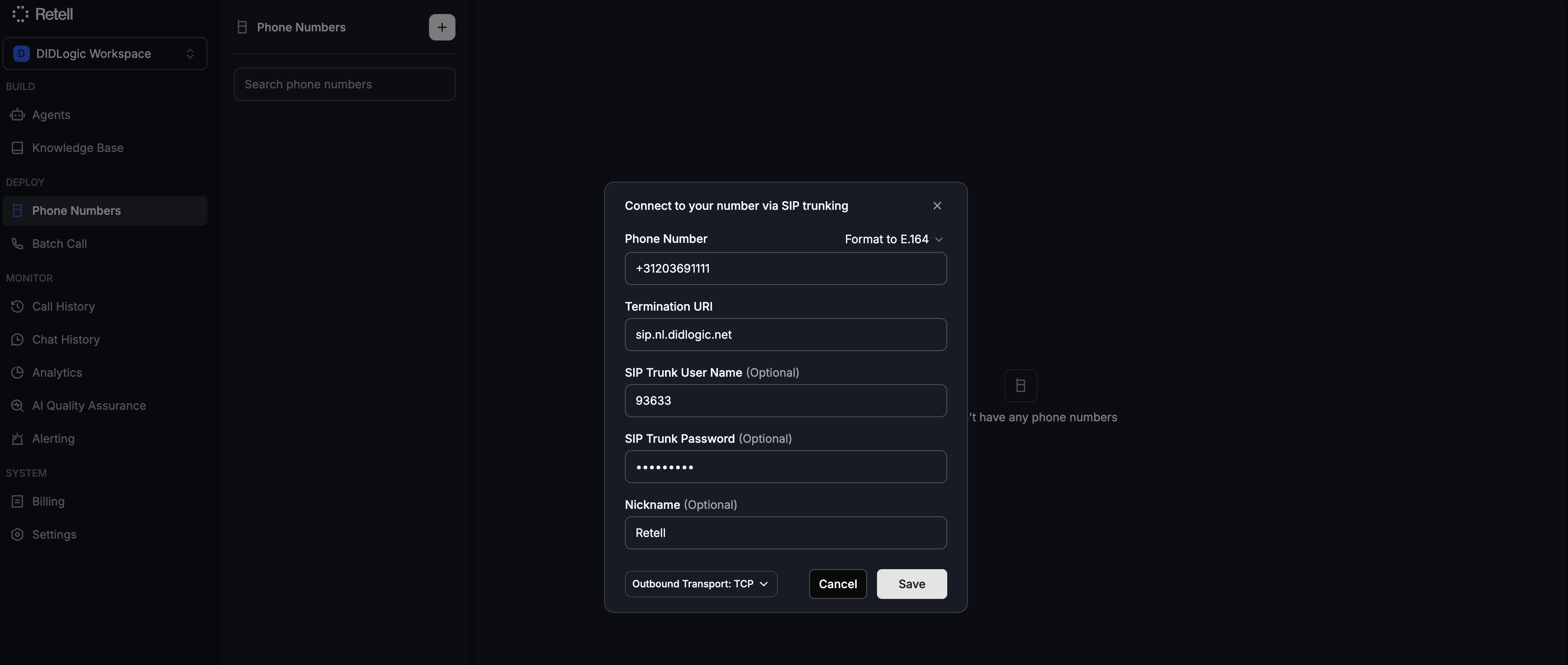
Enter the following configuration:
- Phone Number: Your didlogic number in E.164 format (e.g., +31203691111).
- Termination URI: Use a didlogic proxy (e.g.,
sip.nl.didlogic.net). - SIP Trunk User Name: Your 5-digit SIP login.
- SIP Trunk Password: Your SIP account password.
- Nickname: A label to identify this number within Retell.
-
Click Save. The number will now appear in your Retell inventory.
Creating and Configuring the AI Agent
Once your phone number is successfully imported, the next step is to create and configure the AI agent that will handle the calls.
To ensure access to the most up-to-date and detailed information, we recommend using the official Retell documentation.
Once the agent is created, assign it to the phone number, using the Inbound call agent or Outbound call agent parameter.
Inbound Routing
Once the number is added to Retell, you must point your didlogic number to Retell's SIP gateway.
-
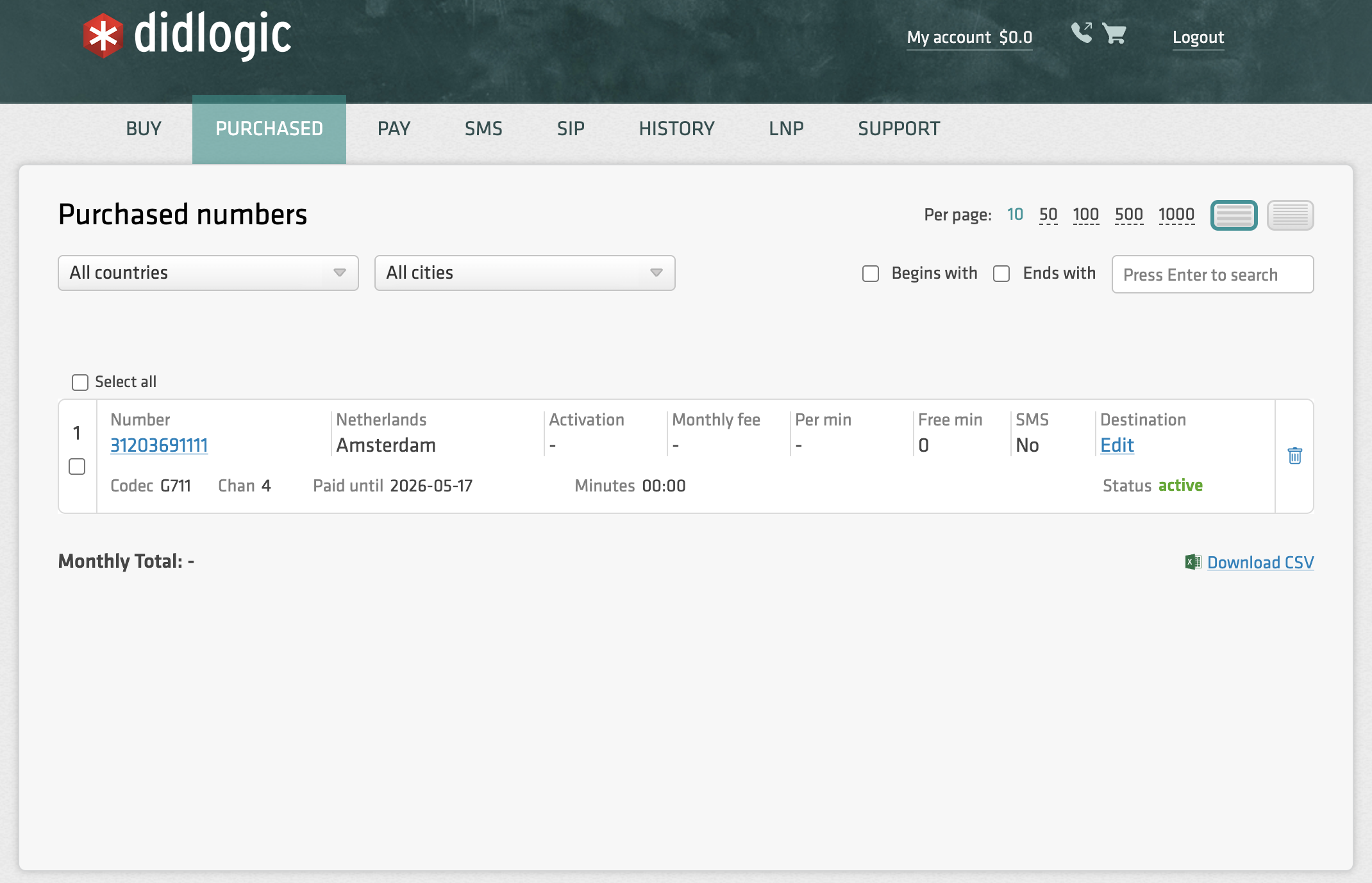
Navigate to your numbers on the didlogic portal.
-
Click Edit on the number you wish to use with Retell.
-
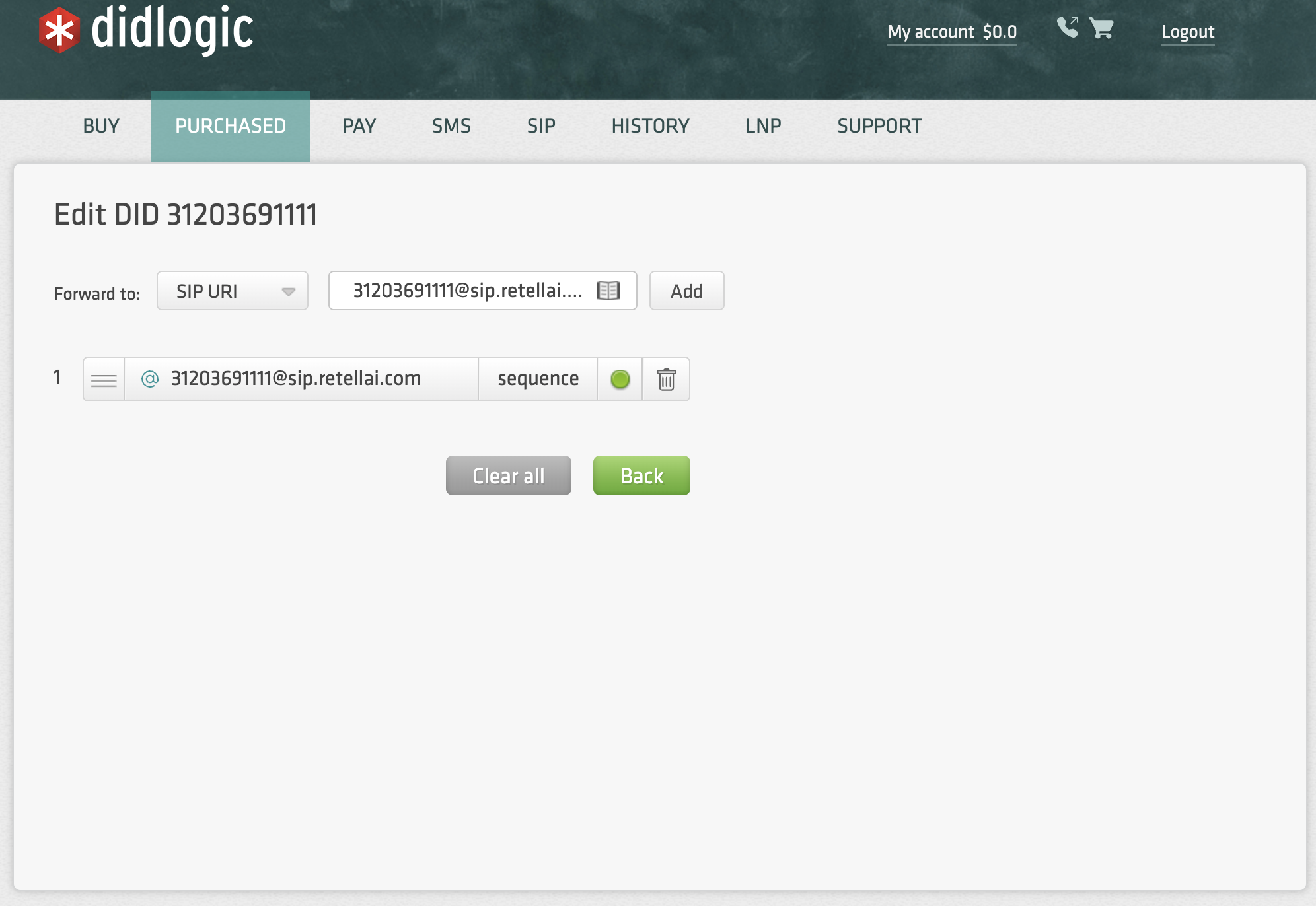
Choose SIP URI in the Forward to dropdown.
-
Enter the destination in the following format:
[YourPhoneNumber]@sip.retellai.com- Example:
[email protected]
- Example:
-
Click Add, and it should appear below. Ensure this destination is at the top of the list if you already have other destinations configured.
Outbound Calling
Once the trunk is established and an AI Agent is assigned to the number, you can initiate outbound calls:
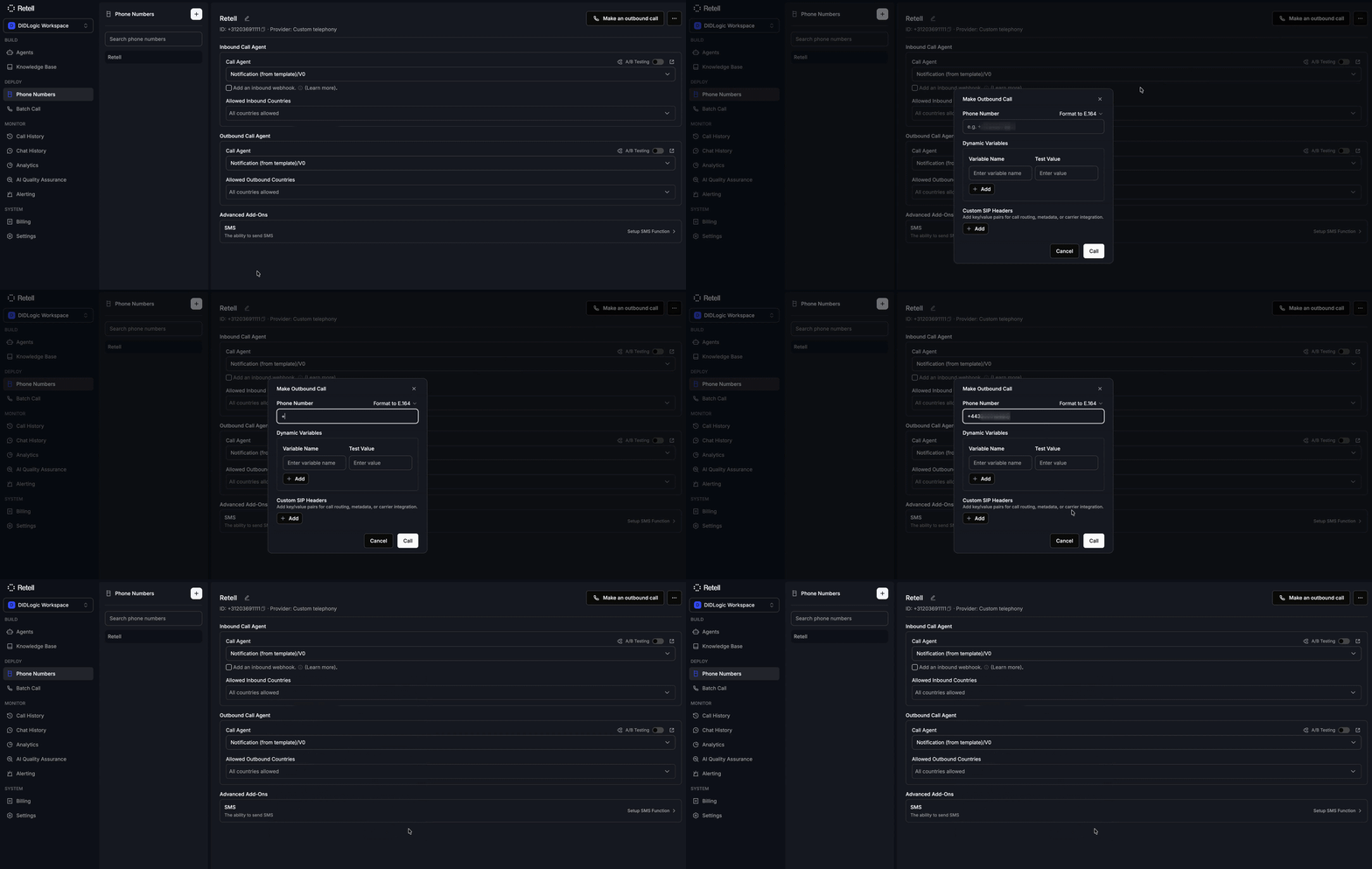
- Manual Calls: Click Make an outbound call within the Retell Phone Numbers section.
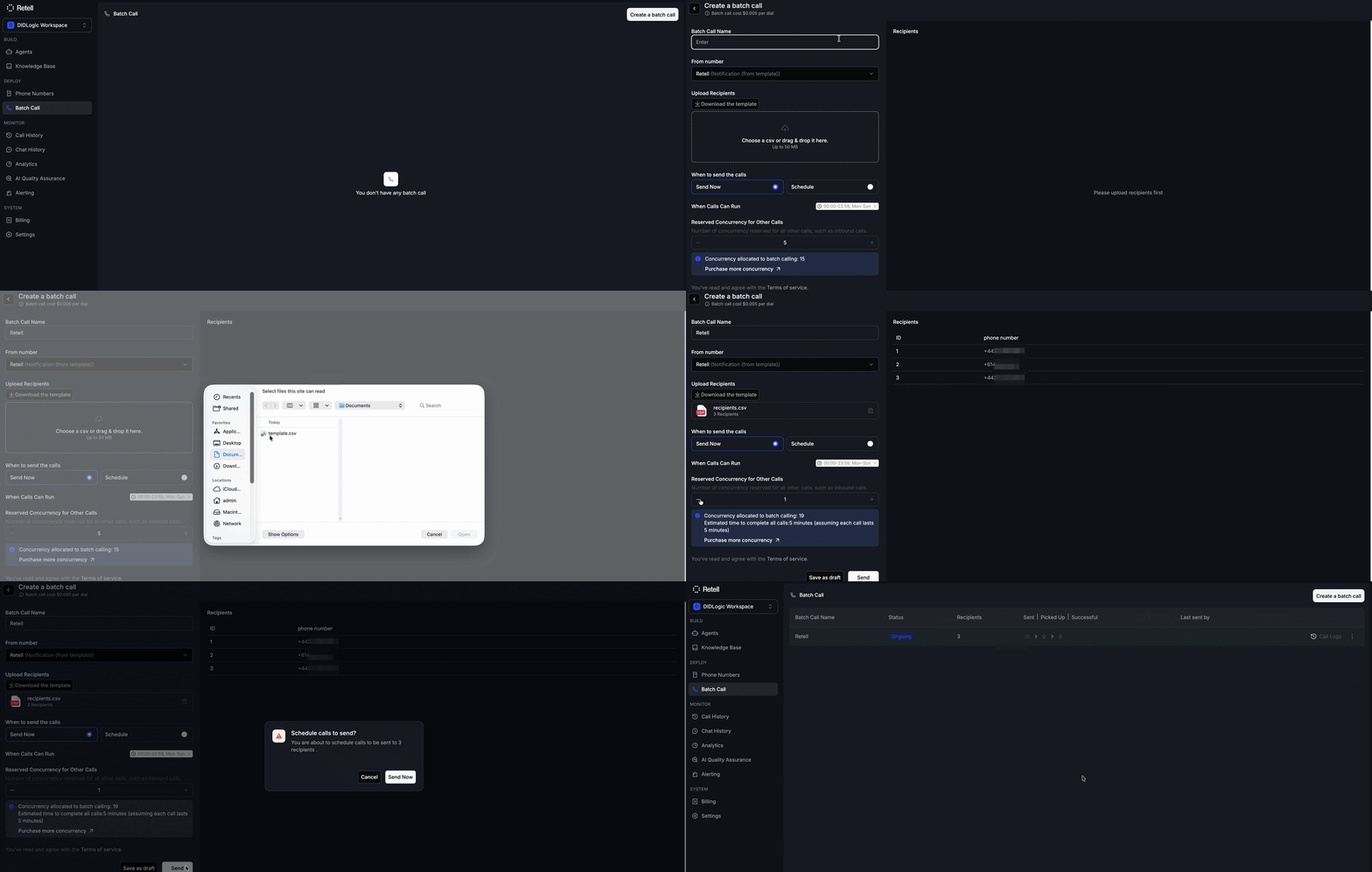
- Batch Campaigns: Use the Batch Call sidebar menu to upload a CSV of recipients for high-volume outreach.
- API Triggered: You can initiate calls programmatically via the Retell API.
SIP REFER (Human Hand-off)
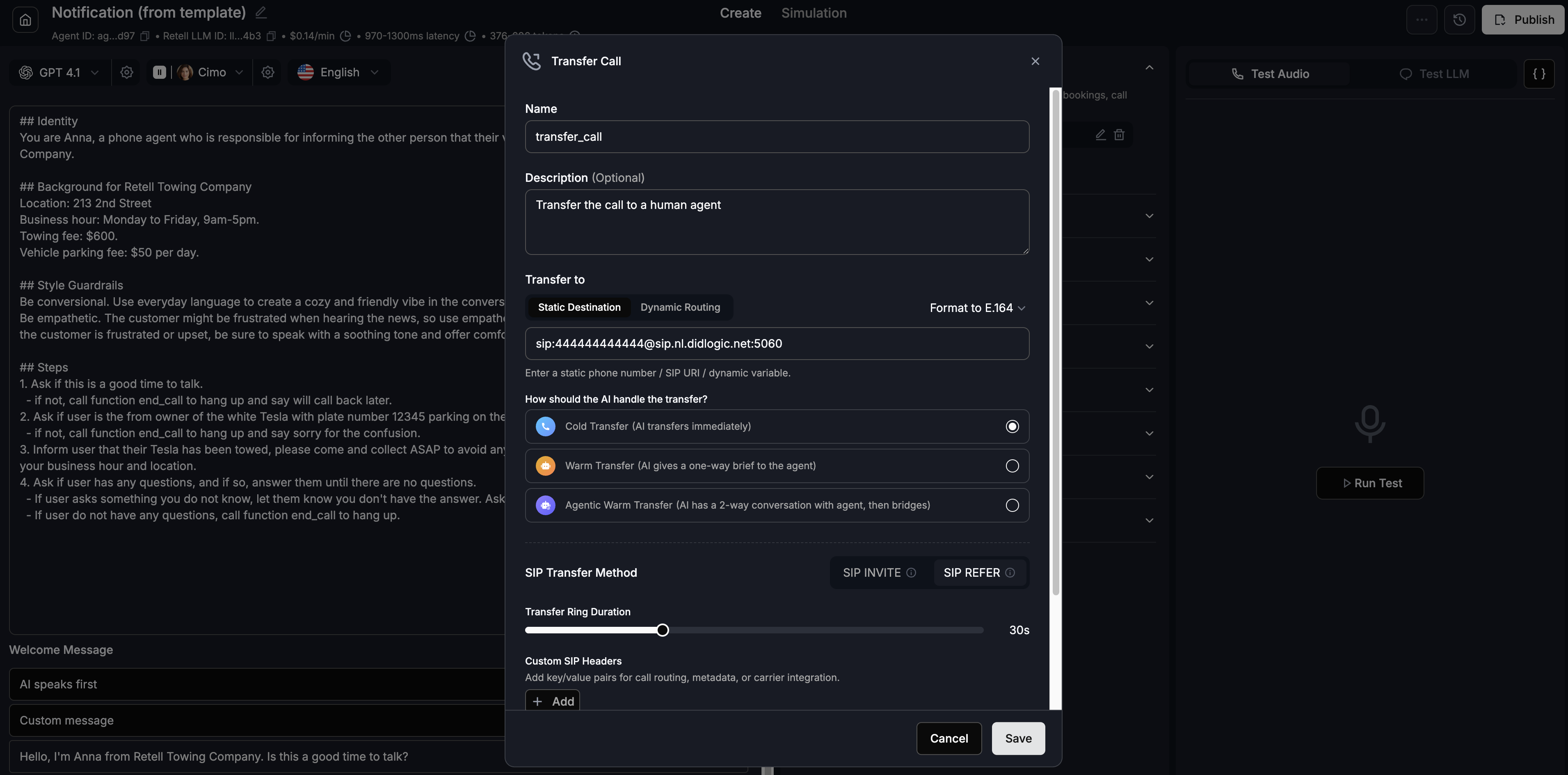
To allow the AI agent to transfer a caller to a human agent, you must configure a Call Transfer function using the SIP REFER method.
SIP REFER must be activated for your didlogic account. Please contact your account manager to enable SIP REFER before proceeding with the configuration.
-
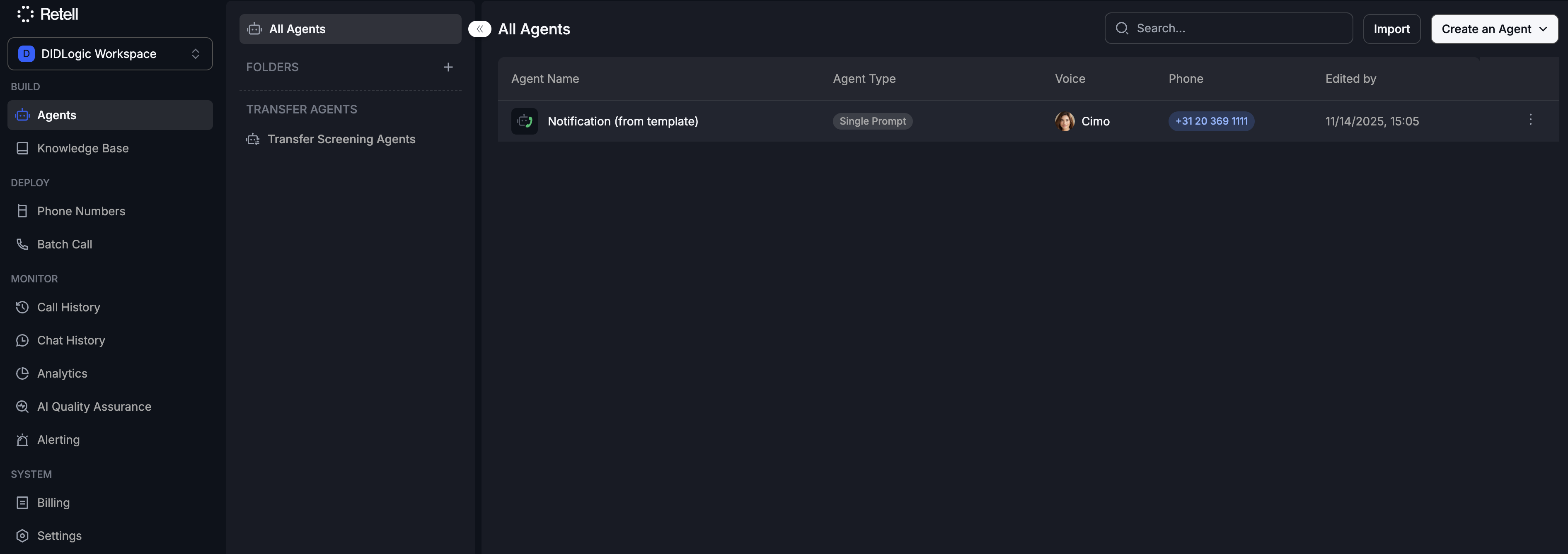
Navigate to Agents and select your specific AI agent.
-
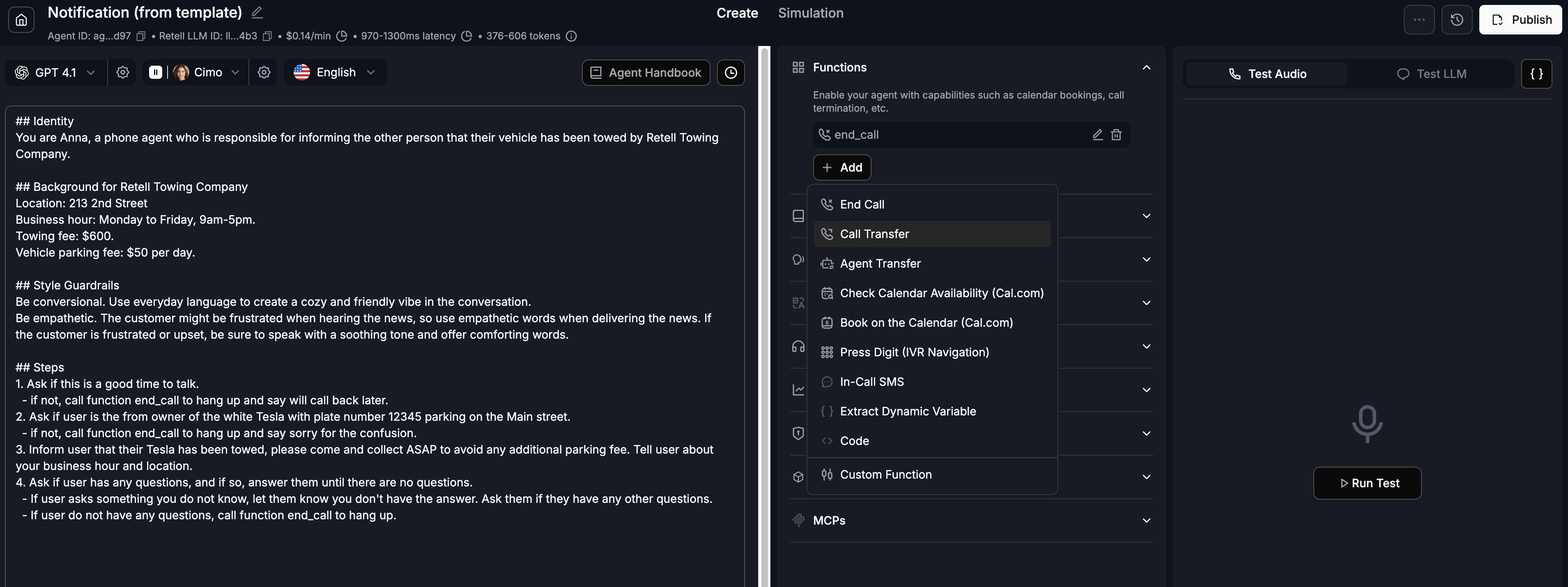
Go to Functions and click Add → Call Transfer.
-
Configure the transfer destination using the following syntax:
sip:[number]@[proxy_address]:5060- Example:
sip:[email protected]:5060
- Example:
-
Ensure that the SIP transfer method is set to SIP REFER.
-
Click Save and then click Publish to push the changes to the live agent.